

Description
Turn every WooCommerce checkout into an opportunity to sell more
BumpMint helps you add relevant order bump offers directly to the WooCommerce checkout. Standard products remain one-click offers, while supported bookable products use their native date and availability form. Present the right complementary product at the moment customers are ready to buy and increase your store’s average order value.
Create multiple order bumps, target each offer with flexible cart rules, include one or more offer products, choose exactly where they appear, and optionally add an exclusive fixed or percentage discount. Everything is managed from a clean, lightweight WordPress interface—no coding required.
Why choose BumpMint?
- Increase average order value — Offer relevant add-ons before the customer completes the order.
- Create a frictionless experience — Standard products are accepted with one click; supported bookings use WooCommerce’s native configuration flow.
- Target offers more precisely — Display each bump when any or all selected products are in the cart, when a product belongs to a selected category, or according to cart subtotal or item quantity.
- Schedule offer availability — Use specific calendar dates, recurring weekdays, and optional time ranges in the WordPress site timezone.
- Avoid redundant offers — Optionally hide each offered product when that exact product or variation is already in the cart.
- Protect promotional pricing — Discounts and final prices are calculated and enforced on the server.
- Limit discounted quantities — Set how many units of each offered product can receive the order bump discount; the default is one.
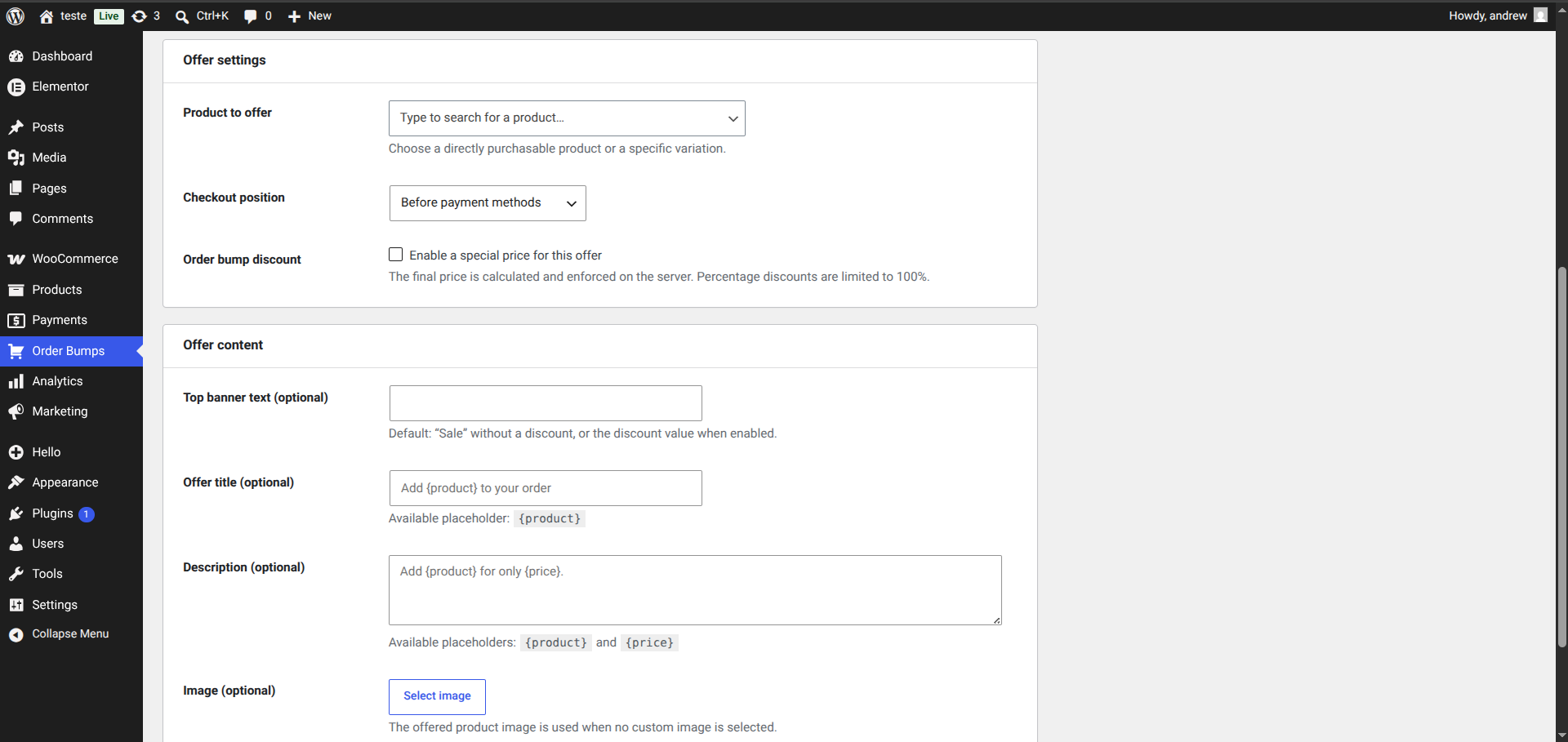
- Stay in control — Customize the product, position, image, headline, description, and promotional banner.
- Keep checkout fast — BumpMint uses lightweight assets and loads them only where they are needed on classic or block checkout.
- Measure performance locally — Review checkout-journey views, paid conversions, conversion rate, net bump revenue, and the best-performing offers without an external analytics service.
Everything you can do with BumpMint
Launch Multiple Order Bumps
Create and manage multiple offers from one WordPress-native screen. Give every order bump an internal name so campaigns are easy to identify, edit, and organize.
Offer Exclusive Discounts
Make checkout offers more compelling with:
- Percentage discounts up to 100%.
- Fixed-value discounts.
- Each product’s regular WooCommerce price when discounts are disabled.
- Automatic original and discounted price display.
- Automatic promotional banner text based on the configured discount.
Fixed discounts are capped so the final product price never becomes negative.
Set Flexible Display Rules
Choose when an order bump should appear:
- Specific products or categories in cart — Trigger the offer when any or all selected products or variations are present, or when a product belongs to any selected category.
- Always show — Display the offer on every eligible checkout.
- Cart subtotal — Show the offer when the subtotal is greater or less than a value you define.
- Cart item quantity — Show the offer when the number of product units is greater or less than a value you define.
Products added by BumpMint are excluded from subtotal and quantity conditions. This prevents an offer from activating or deactivating itself.
Product and category triggers use OR logic and can also be configured as category-only rules. Selecting a parent category includes products in its child categories, and variations use their parent product categories.
Schedule Offer Availability
Keep an offer available every day, limit it to one or more specific calendar dates, or repeat it on selected weekdays. An optional time range uses the WordPress site timezone and can continue past midnight. The display rule and availability schedule must both match before the order bump appears.
Choose the Best Checkout Position
Place each offer where it fits your checkout strategy:
- Before order items.
- After order items.
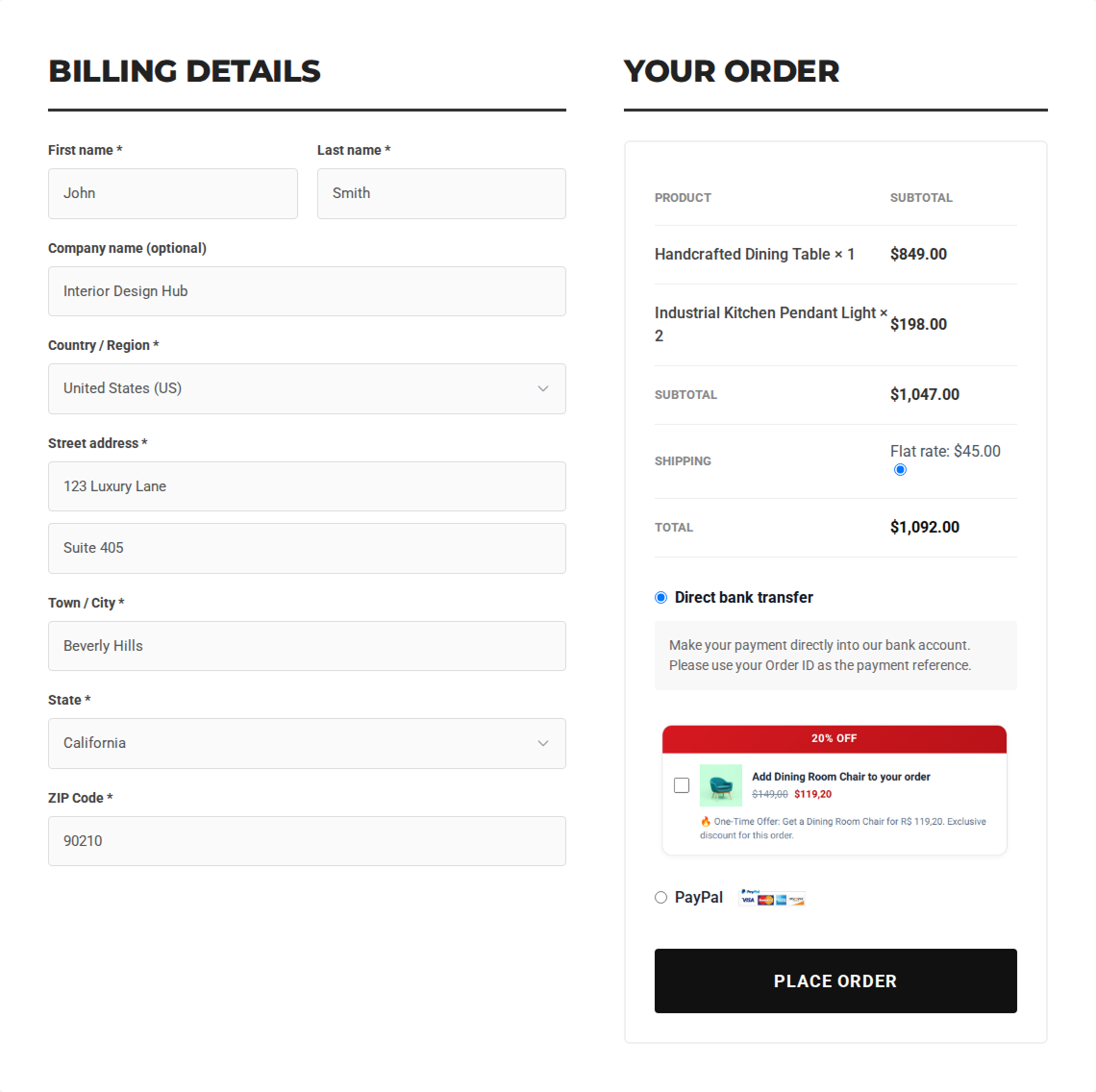
- Before payment methods.
- Before the Place order button.
All positions stay synchronized with WooCommerce classic checkout updates, including a lightweight fragment for the location before payment methods. Checkout Blocks display eligible offers below the order summary because block checkout does not expose equivalent PHP hook positions.
Customize Every Offer
Match the offer to your product and campaign:
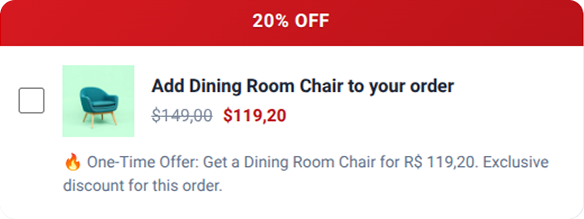
- Add a custom promotional top banner.
- Use automatic Sale, percentage discount, or fixed discount text.
- Create a custom offer title and description.
- Insert dynamic
{product}and{price}placeholders. - Upload a custom image or automatically use the product image.
- Offer one or more simple products, specific purchasable variations, or supported WooCommerce Bookings products as separately selectable offers.
- Optionally hide offered products that are already in the cart while leaving the rule’s other products available.
- Display the original price and discounted price together.
- Deliver a responsive experience across desktop and mobile.
Keep Prices and Cart Actions Secure
The browser never decides which product price should be charged. One-click offers send the saved rule ID, selected offer product ID, and requested selection state. Configurable booking offers submit their required fields through the native WooCommerce Bookings product form.
BumpMint then verifies the saved rule and current cart condition, purchasability, stock, and discounted quantity on the server. The discount is calculated from the effective WooCommerce or booking price, synchronized with the selected offer, and enforced during cart total calculations.
Measure Order Bump Performance
Open Order Bumps > Analytics to review:
- Views by checkout journey.
- Currently valid paid conversions.
- Conversion rate.
- Net product revenue generated by BumpMint.
- The best-performing order bump.
- Performance by date, weekday, and hour of day.
- Per-bump results with period, bump, and currency filters.
Conversions follow WooCommerce’s current paid-order definition, normally Processing and Completed. Cancelled, failed, and fully refunded bump purchases are excluded. Partial refunds reduce the reported quantity and revenue, while refunds unrelated to a BumpMint line do not remove that bump’s conversion.
Bump revenue uses only the BumpMint product-line total after applicable refunds. Taxes and shipping are never included. Analytics begins tracking when this version is installed and intentionally does not import earlier orders.
Views use a random checkout-journey token kept in the WooCommerce session and stored in Analytics only as a one-way hash. The token is renewed after an order or an emptied cart, so the same bump can be counted in a later checkout without duplicate views from AJAX refreshes. Names, email addresses, IP addresses, and user-agent strings are not stored in the Analytics tables, and no report data is sent to an external service. Administrators can reset all report data without deleting order bumps, products, or WooCommerce orders.
Start selling more in three simple steps
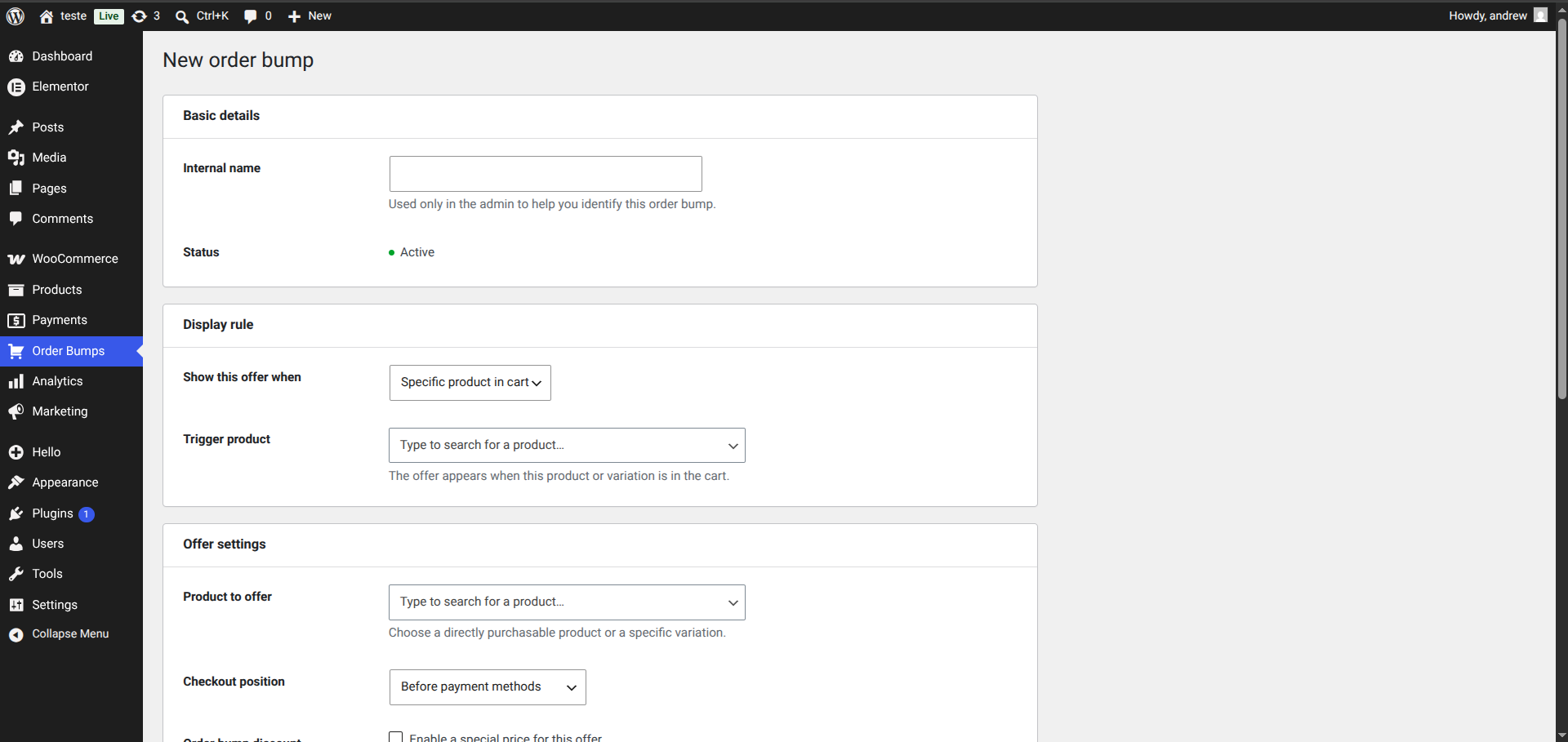
- Create an order bump and choose one or more products you want to offer.
- Select a display rule, checkout position, and optional discount.
- Customize the banner and content, save the offer, and let customers add it from checkout.
Install BumpMint and turn your existing WooCommerce checkout into a smarter revenue opportunity.
Built for a clean WooCommerce workflow
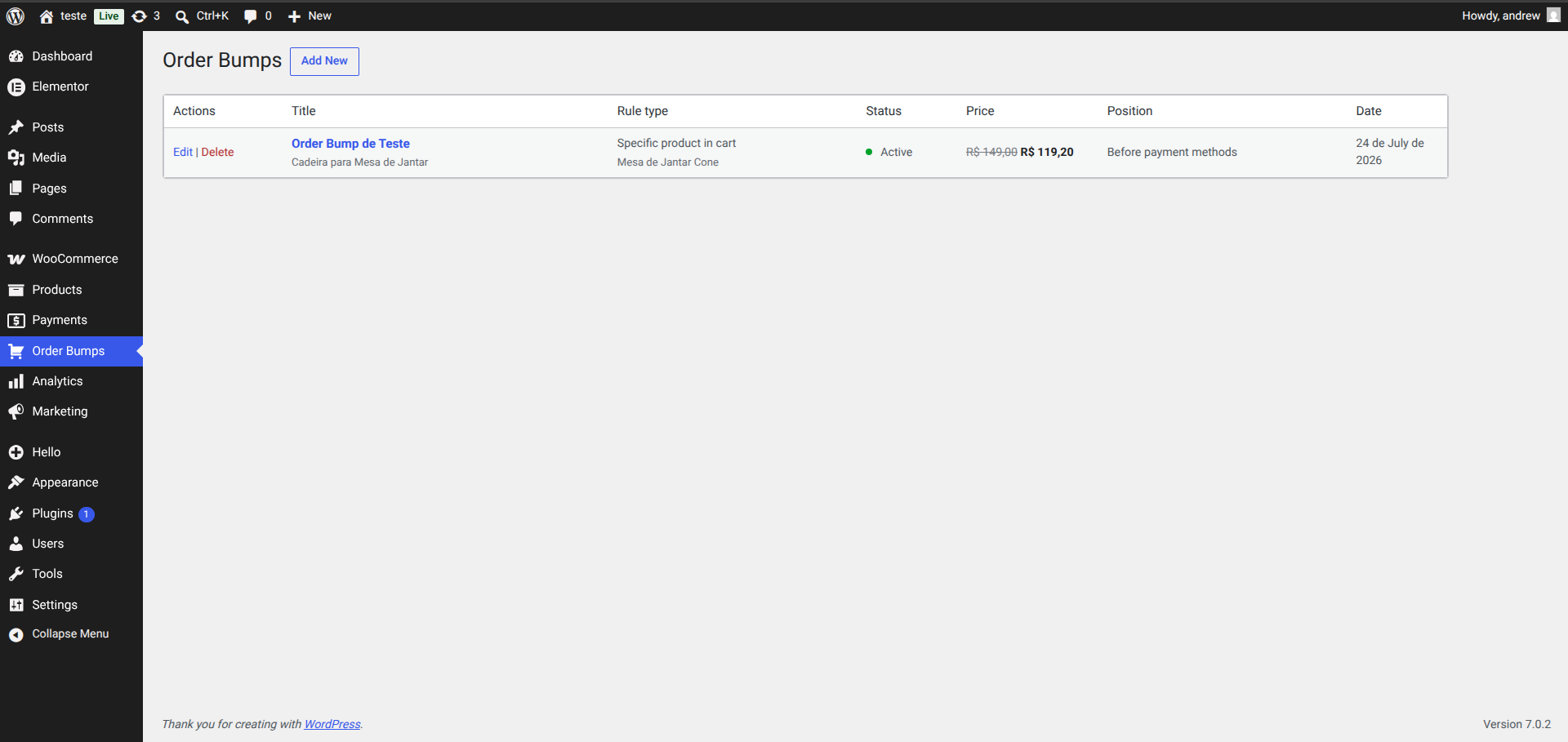
The administration screen follows familiar WordPress patterns and shows:
- Actions.
- Internal order bump title.
- Display rule.
- Status.
- Regular or discounted price.
- Checkout position.
- Creation date.
Compatibility
BumpMint supports:
- The standard WooCommerce shortcode checkout.
- WooCommerce Checkout Blocks through the Store API and the extension point below the order summary.
- Compatible page-builder checkout widgets, including the native Elementor Pro Checkout widget.
- WooCommerce High-Performance Order Storage (HPOS).
- Simple products, specific purchasable variations, and WooCommerce Bookings products that do not require confirmation.
- Payment gateways that work normally with the selected WooCommerce checkout type.
BumpMint does not display order bumps on the cart page, so it has no Cart Block interface.
Screenshots
Installation
- In WordPress, go to Plugins > Add New.
- Search for BumpMint and click Install Now.
- Activate the plugin and make sure WooCommerce is active.
- Open Order Bumps in the WordPress admin menu.
- Click Add New, configure your first offer, and save it.
For manual installation, upload the bumpmint-order-bump-for-woocommerce folder to /wp-content/plugins/ and activate it from the Plugins screen.
FAQ
-
Do I need to know how to code?
-
No. Every order bump can be created and managed from the WordPress admin.
-
Can I create more than one order bump?
-
Yes. You can create and manage multiple order bumps. Every applicable offer assigned to a checkout position can be displayed.
-
Can an order bump appear without a trigger product?
-
Yes. Select Always show as the display rule.
-
Can I select multiple trigger and offer products?
-
Yes. A product rule can match any selected trigger product or require all selected trigger products to be in the cart. Each selected offer product is displayed separately so the customer can accept one or more offers.
-
Can I trigger an offer by product category?
-
Yes. Enable category triggers and select one or more product categories. A product in any selected category can trigger the offer, and category triggers can be used without selecting a trigger product. Product and category triggers are combined with OR logic. Selecting a parent category also includes its child categories, and variations use their parent product categories.
-
Can I schedule when an order bump is available?
-
Yes. Each order bump can be available every day, on selected calendar dates, or on selected weekdays. You can also limit it to a time range. Scheduling uses the timezone configured in WordPress, and ranges such as 22:00–02:00 continue into the next day.
-
Can I limit how many discounted units a customer can buy?
-
Yes. Each order bump has a maximum discounted quantity for every offered product. The default is one unit, and the limit is enforced on the server when the cart is updated and totals are calculated.
-
Can I target the cart value or number of items?
-
Yes. Use the Cart subtotal or Cart item quantity rule and choose Greater than or Less than.
-
Does the subtotal include shipping and taxes?
-
No. The cart subtotal condition excludes shipping and taxes. It also excludes products added by BumpMint.
-
Does the quantity condition include the order bump itself?
-
No. Products added through BumpMint are excluded from quantity conditions so an offer cannot trigger itself.
-
Can I change the offer price?
-
Yes. Enable the order bump discount and choose a fixed or percentage discount. Leave discounts disabled to use the product’s normal WooCommerce price.
-
What happens if a display condition stops matching?
-
BumpMint removes only the cart line created by that offer. A separate line of the same product added normally remains in the cart. If checkout was open with outdated totals, the customer must review the refreshed checkout before placing the order.
-
Does BumpMint check product stock?
-
Yes. Before an offered product is added, it must exist, be purchasable, be in stock, and have enough stock available.
-
Yes. Enter any custom banner text. If the field is empty, BumpMint displays Sale when no discount is configured, or the fixed/percentage discount value when a discount is enabled.
-
Does BumpMint support product variations?
-
Yes. A specific variation can be used as a trigger or offered product. A variable parent product must be configured as a specific purchasable variation when used as the offer.
-
Does BumpMint support WooCommerce Bookings?
-
Yes, for bookable products that do not require confirmation. The offer sends the customer to the product’s native booking form to choose the date and any other required options, then returns to checkout. BumpMint calculates its discount from the booking price calculated by WooCommerce. Bookings that require confirmation use a separate flow and cannot be offered as order bumps.
-
Where can I display the order bump?
-
On classic checkout, you can display it before or after the order items, before payment methods, or before the Place order button. Checkout Blocks display eligible offers below the order summary.
-
Does BumpMint support WooCommerce Checkout Blocks?
-
Yes. BumpMint uses WooCommerce’s Store API and checkout extension point. It intentionally has no Cart Block offer interface because order bumps are displayed only during checkout.
-
Is BumpMint compatible with HPOS?
-
Yes. BumpMint declares compatibility with WooCommerce High-Performance Order Storage.
-
When does Analytics count a conversion?
-
A conversion is counted once per order bump when the order is currently recognized as paid by WooCommerce, normally while it is Processing or Completed. Later cancellations, failed statuses, and fully refunded bump products are removed from the active results automatically.
-
Does Analytics include tax, shipping, or old orders?
-
No. Bump revenue includes only the net product-line totals added through BumpMint, after applicable refunds. Taxes, shipping, and orders created before Analytics tracking began are excluded.
-
Where can I report a bug or contribute?
-
Development is hosted on GitHub. Use the repository’s Issues section to report reproducible bugs or suggest improvements.

Contributors & Developers
“BumpMint – Order Bump for WooCommerce” is open source software. The following people have contributed to this plugin.
Contributors
“BumpMint – Order Bump for WooCommerce” has been translated into 1 locale. Thank you to the translators for their contributions.
Translate “BumpMint – Order Bump for WooCommerce” into your language.
Interested in development?
Browse the code, check out the SVN repository, or subscribe to the development log by RSS.
Changelog
1.6.0 – 2026-08-18
- Added native WooCommerce Bookings offers that use the product’s date and options form before returning customers to checkout automatically.
- Applied order bump discounts to the booking cost calculated by WooCommerce and kept configured bookings removable in classic checkout and Checkout Blocks.
- Added signed, session-bound handoffs with server-side validation of the saved rule, product, cart eligibility, stock, and quantity.
- Excluded booking products that require confirmation because they use a separate purchase and payment flow.
- Verified compatibility with WordPress 7.1.
1.5.0 – 2026-08-11
- Added a lightweight local Analytics dashboard with period, order bump, and currency filters.
- Added checkout-journey views, paid conversions, conversion rate, net bump revenue, top-performing bump, and date, weekday, and hourly breakdowns.
- Synchronized conversions with current WooCommerce paid statuses and BumpMint line refunds while excluding taxes and shipping from revenue.
- Added prospective-only tracking, pseudonymous checkout attribution, and a secure option to reset all report data.
1.4.0 – 2026-08-11
- Added availability scheduling for every day, selected calendar dates, or recurring weekdays.
- Added optional time ranges based on the WordPress site timezone, including ranges that continue past midnight.
- Enforced schedule eligibility on the server across classic checkout and Checkout Blocks, including automatic removal of selected offers that are no longer scheduled.
1.3.0 – 2026-08-10
- Added product category triggers, including category-only rules and product/category OR matching.
- Added native WooCommerce category selection with parent-category matching and variation support.
- Added automated coverage for category eligibility, validation, duplicate detection, and admin category selection.
- Improved eligibility messages and documentation for product and category triggers.
1.2.0 – 2026-08-08
- Added WooCommerce Checkout Block support with eligible order bumps displayed below the order summary.
- Added Store API-backed offer selection with server-side pricing, stock, quantity, and eligibility validation.
- Kept selected offers and stale-checkout protection synchronized during Checkout Block updates.
- Clarified that configurable checkout positions apply only to classic checkout and added Checkout Block-specific spacing.
1.1.3 – 2026-08-06
- Applied order bump discounts to effective WooCommerce prices, including compatible product filters and cart pricing adjustments.
- Synchronized selected offer cards, descriptions, placeholders, and fixed-discount badges with the price charged in the cart.
- Prevented repeated total calculations from compounding order bump discounts while preserving regular cart lines of the same product.
- Moved stored order bump rules out of WordPress autoloaded options, including a one-time migration for existing installations.
1.1.2 – 2026-08-05
- Fixed subtotal rules to evaluate current cart prices after cart changes instead of stale line totals.
- Automatically removed BumpMint-added products when their display rule stops matching while preserving independently added cart lines.
- Prevented stale checkout submissions until updated totals are reviewed and synchronized offers before payment methods during AJAX refreshes.
1.1.1 – 2026-08-04
- Fixed rejected cart additions to display the specific WooCommerce error inside the order bump without duplicating it globally.
- Improved order bump error and description readability.
1.1.0 – 2026-08-04
- Added multiple trigger products with Any or All matching.
- Added multiple independently selectable offer products to each order bump.
- Added an option to hide offered products that are already in the cart.
- Added server-side discounted quantity limits for each offered product, defaulting to one unit.
- Added direct WordPress.org support and review links to BumpMint admin screens and plugin metadata.
- Added an admin warning for plugin packages installed outside the canonical directory.
- Fixed WooCommerce help tooltips and improved product selector removal controls.
- Improved PHP compatibility checks and release workflow validation.
1.0.0 – 2026-08-02
- Initial release.