

Description
You decide what changes on this site.
Adminkeep is a set of tools under that one idea. Site Lock stops things changing behind
your back — no new comment, no new plugin, no new user. Content makes the changes you do want
safe to make.
Every feature is a single switch, off until you turn it on. Switching one off never leaves you
repair work: the locks work purely through WordPress filters, so your site is exactly as it was,
and what you made with the Content features stays where you put it.
Site Lock
- Disable Comments — comments off everywhere, including direct POSTs from spam bots and the REST API. Nothing is written to your database, so switching it off brings every comment back. An optional cleanup button deletes spam and trashed comments, after showing you the exact count. Guide
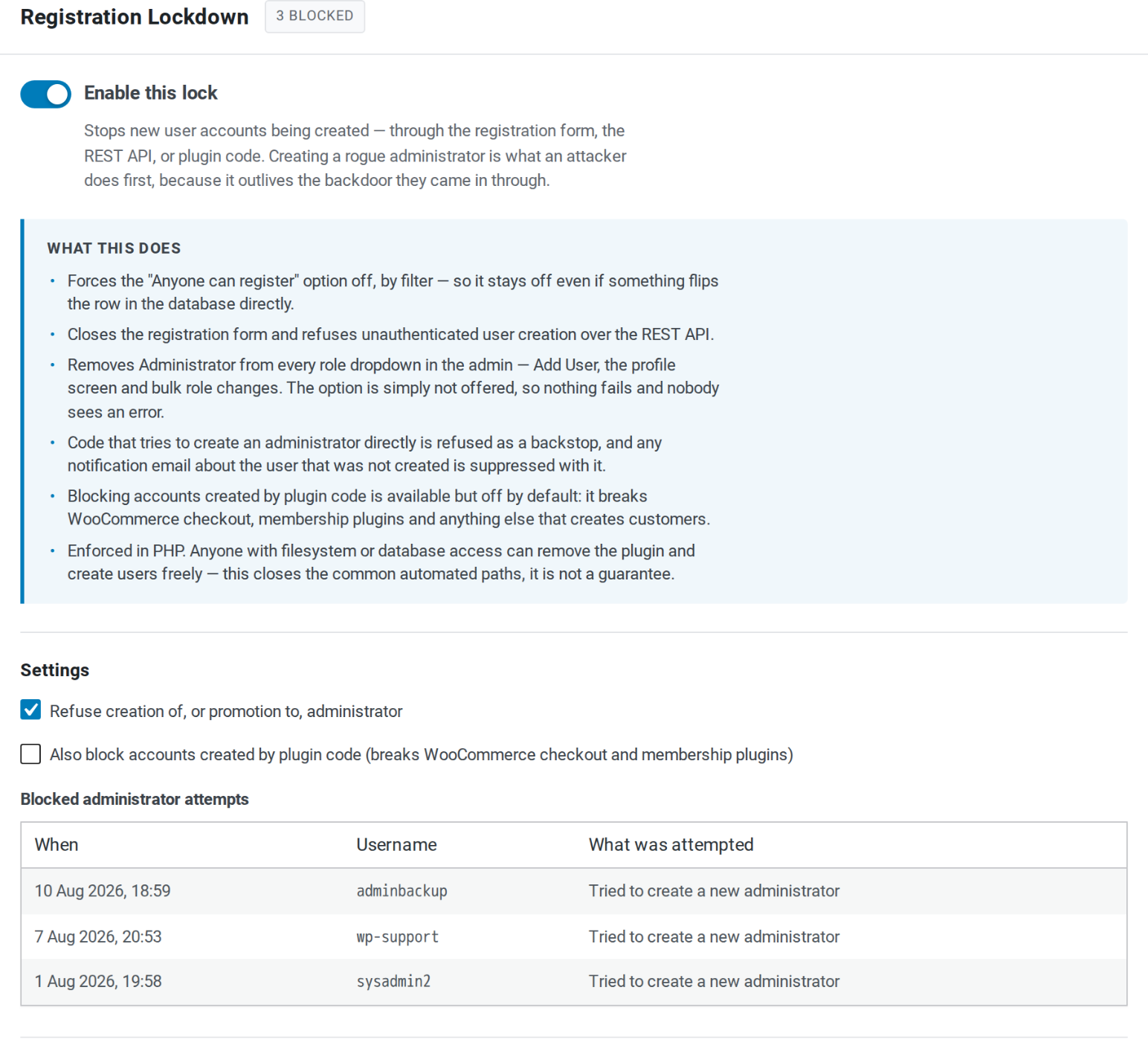
- Registration Lockdown — stops new accounts being created, and refuses creation of or promotion to administrator. Blocked attempts are logged. Guide
- Disable XML-RPC — closes
xmlrpc.phpcompletely, including pingbacks andsystem.multicall. Guide - Disable File Editing — removes the built-in plugin and theme file editors, reversibly.
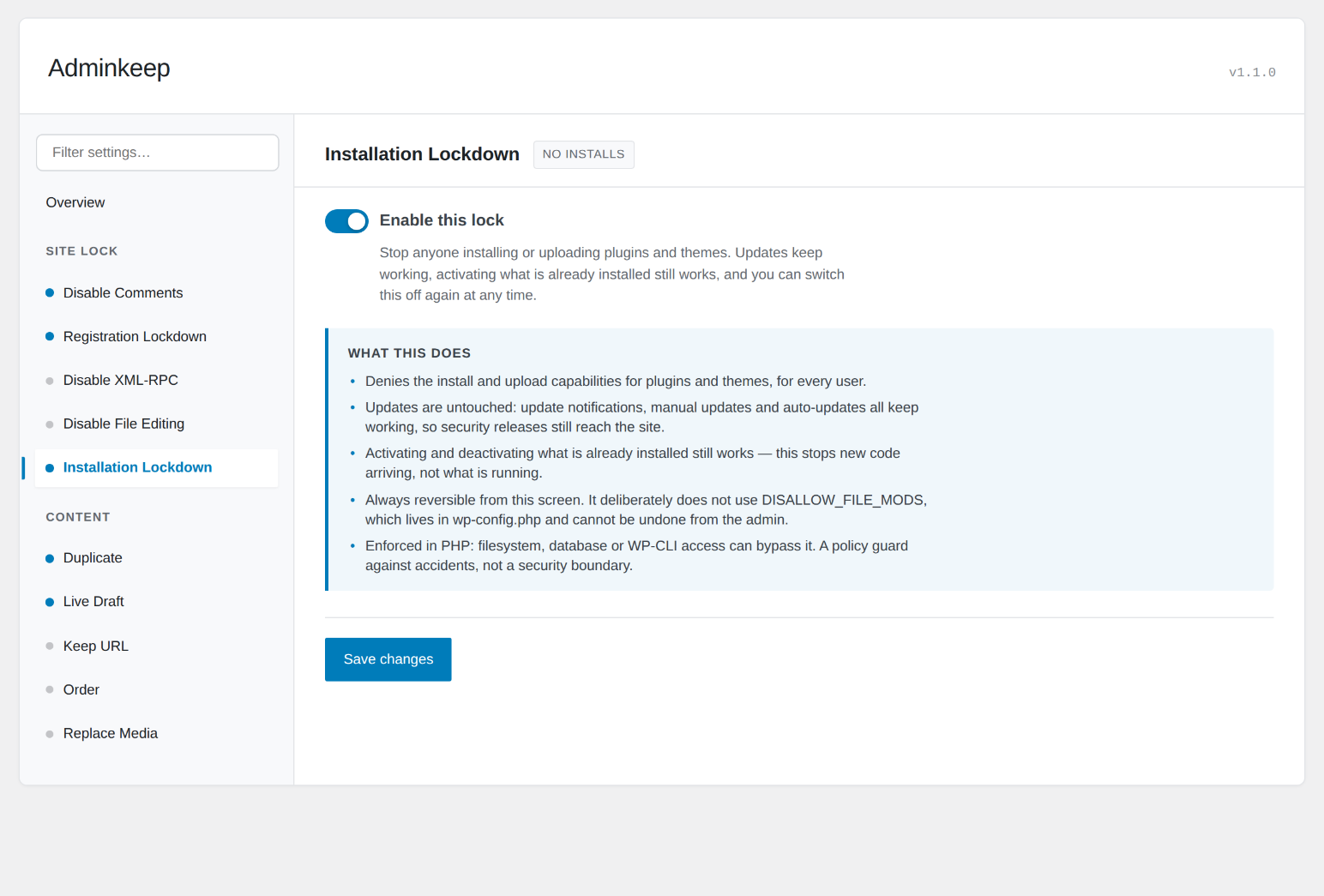
- Installation Lockdown — no new plugins or themes, from WordPress.org or a ZIP, and no replacing one by uploading a ZIP, for anyone. Updates keep working, so security releases still reach your site. Guide
- Username Privacy — keeps your usernames out of public view. Author pages, the
?author=1probe, the REST users list, author sitemaps and embed previews stop naming your accounts to visitors; anyone logged in sees everything as before. Nothing is written, so switching it off reopens it all. Guide
Appearance
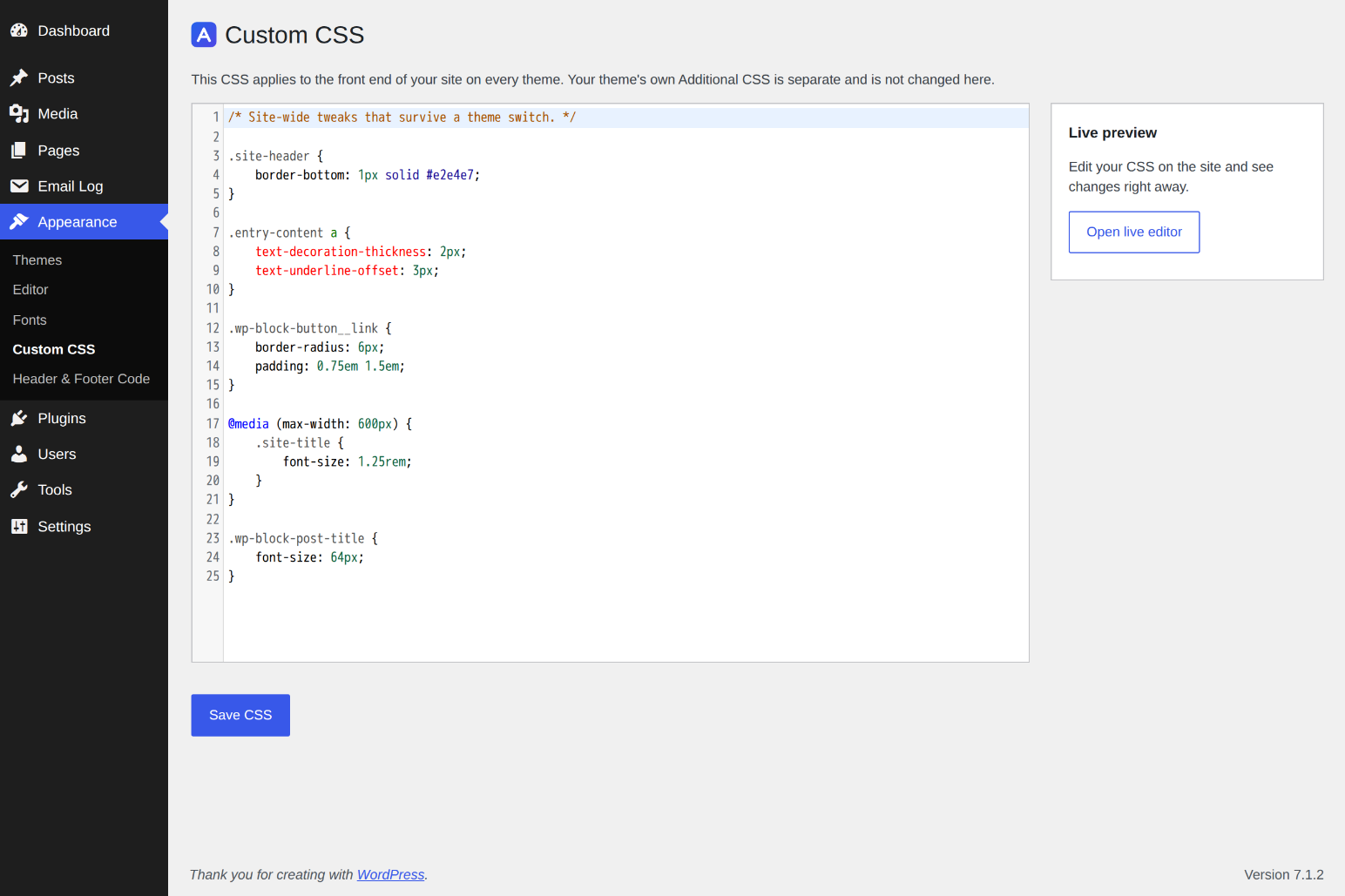
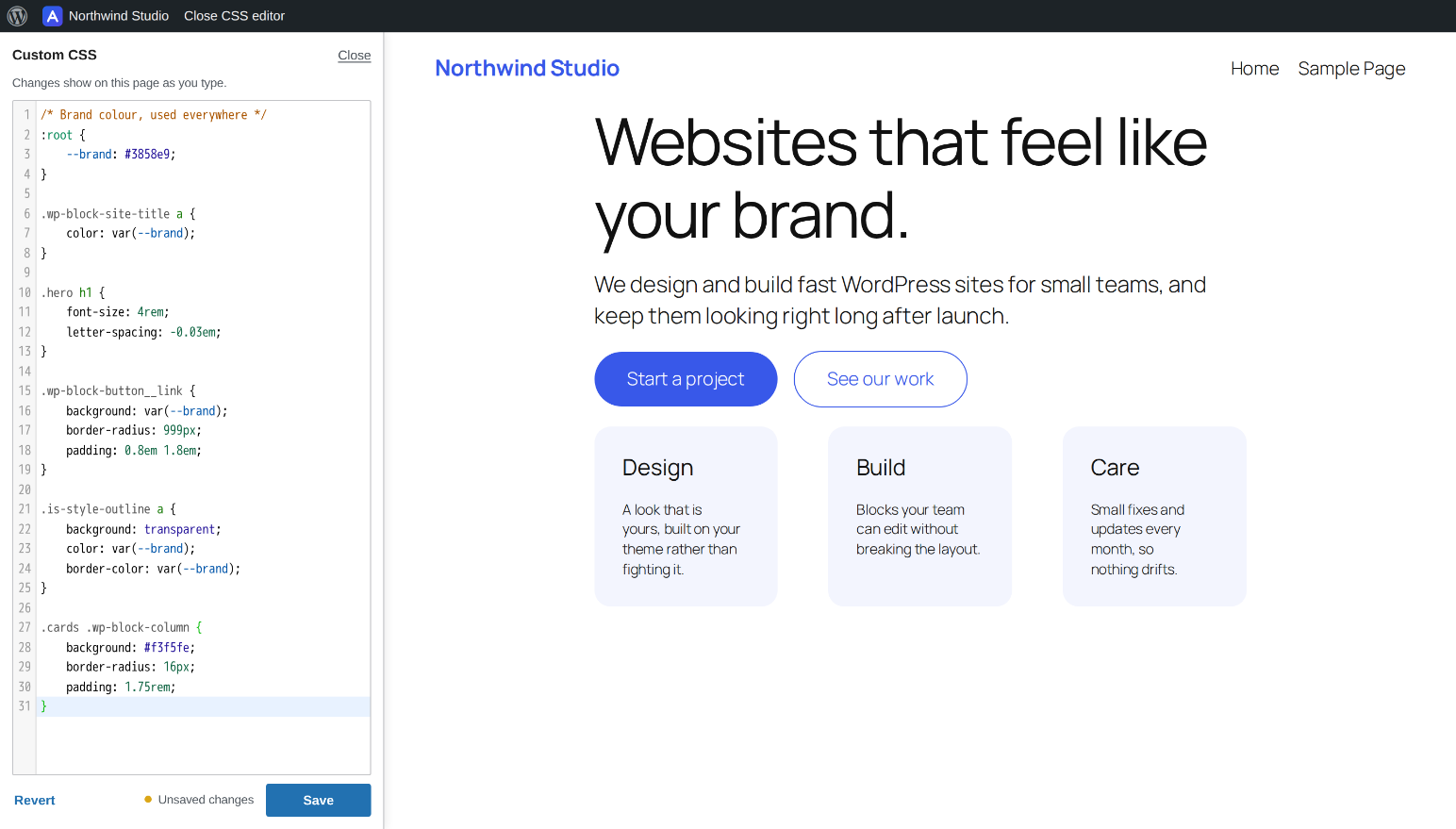
- Custom CSS — CSS that belongs to your site instead of your theme. Edit it under Appearance with WordPress’s own code editor, or open Edit CSS from the admin bar on any page and watch the page restyle as you type, the way the Customizer’s CSS box used to. It stays when you switch themes, and your theme’s Additional CSS is left alone.
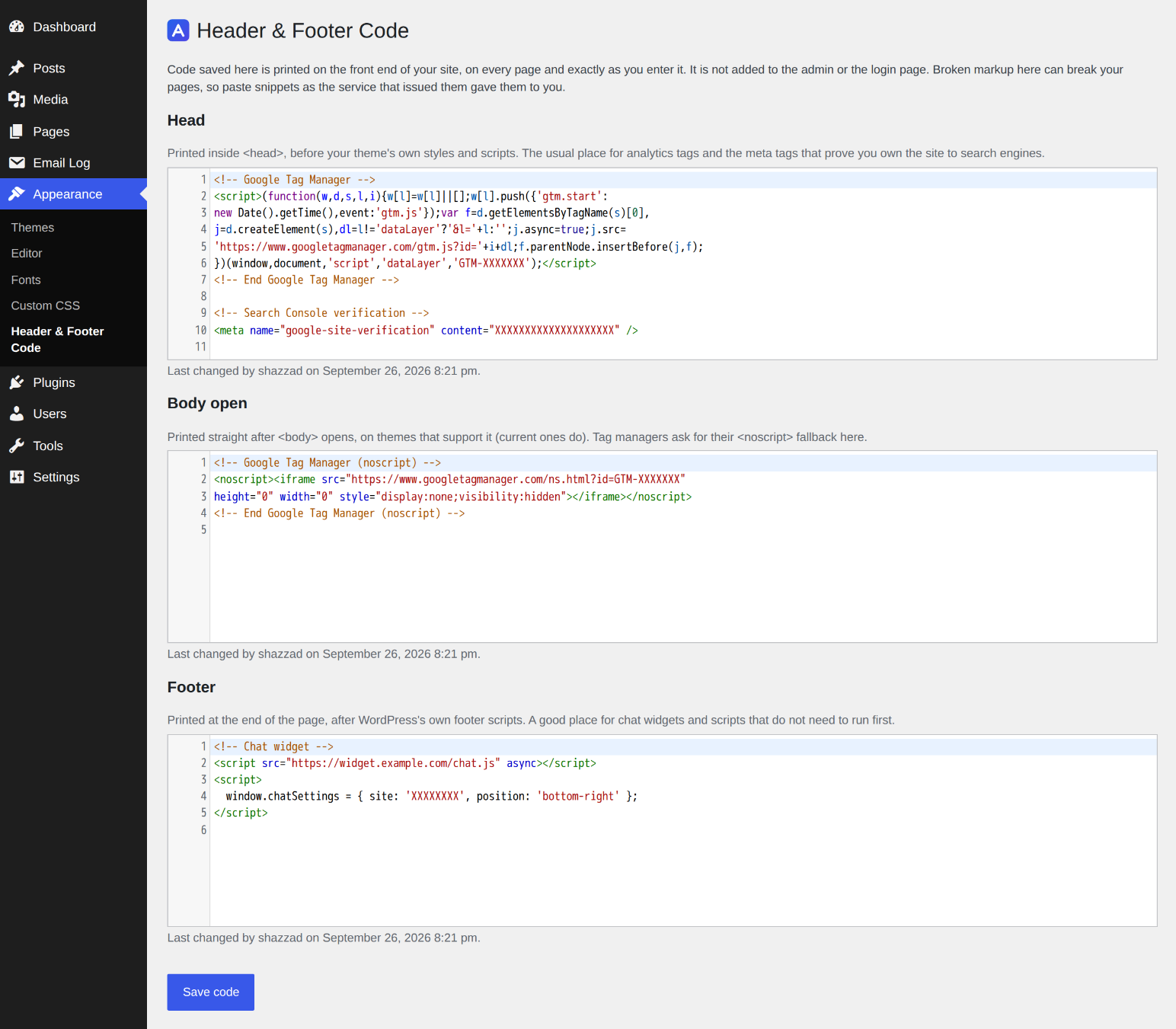
- Header & Footer Code — a home for the snippets services ask you to paste into your site: analytics and verification tags in the head, a tag manager’s fallback just after the body opens, chat widgets and scripts in the footer. Three boxes under Appearance with WordPress’s code editor, printed on the front end exactly as you saved them, and kept when you change or update your theme. Each box shows who last changed it and when. Only administrators allowed to post unfiltered HTML can edit them.
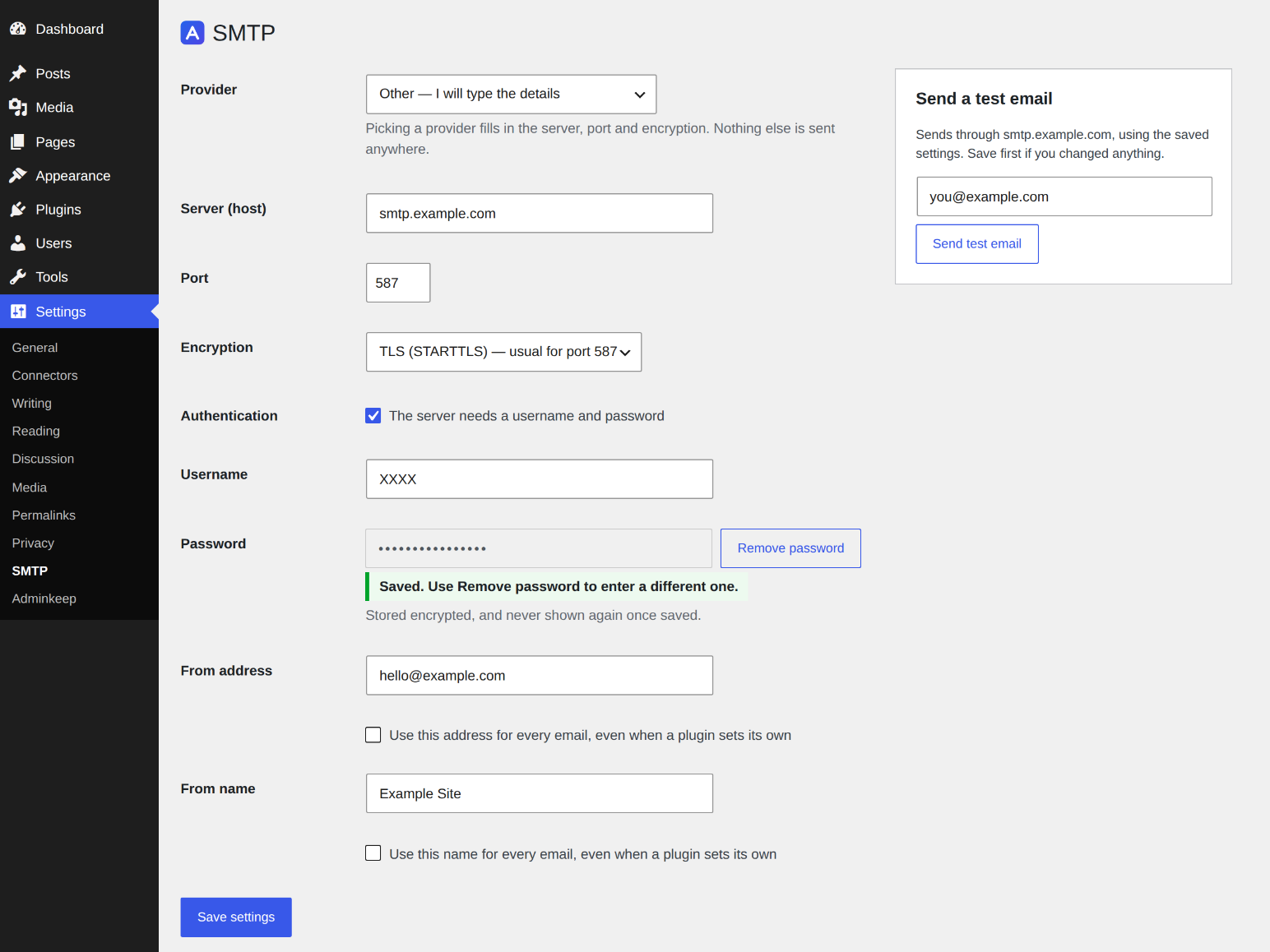
- SMTP — Send your site’s email through an SMTP server so password resets and form messages arrive. Presets for Amazon SES, Brevo, Mailgun, SendGrid, Postmark, Zoho and Gmail; a test email that shows the server’s own error; settings can live in wp-config.php. Moving from WP Mail SMTP? One click copies its SMTP connection settings. Guide
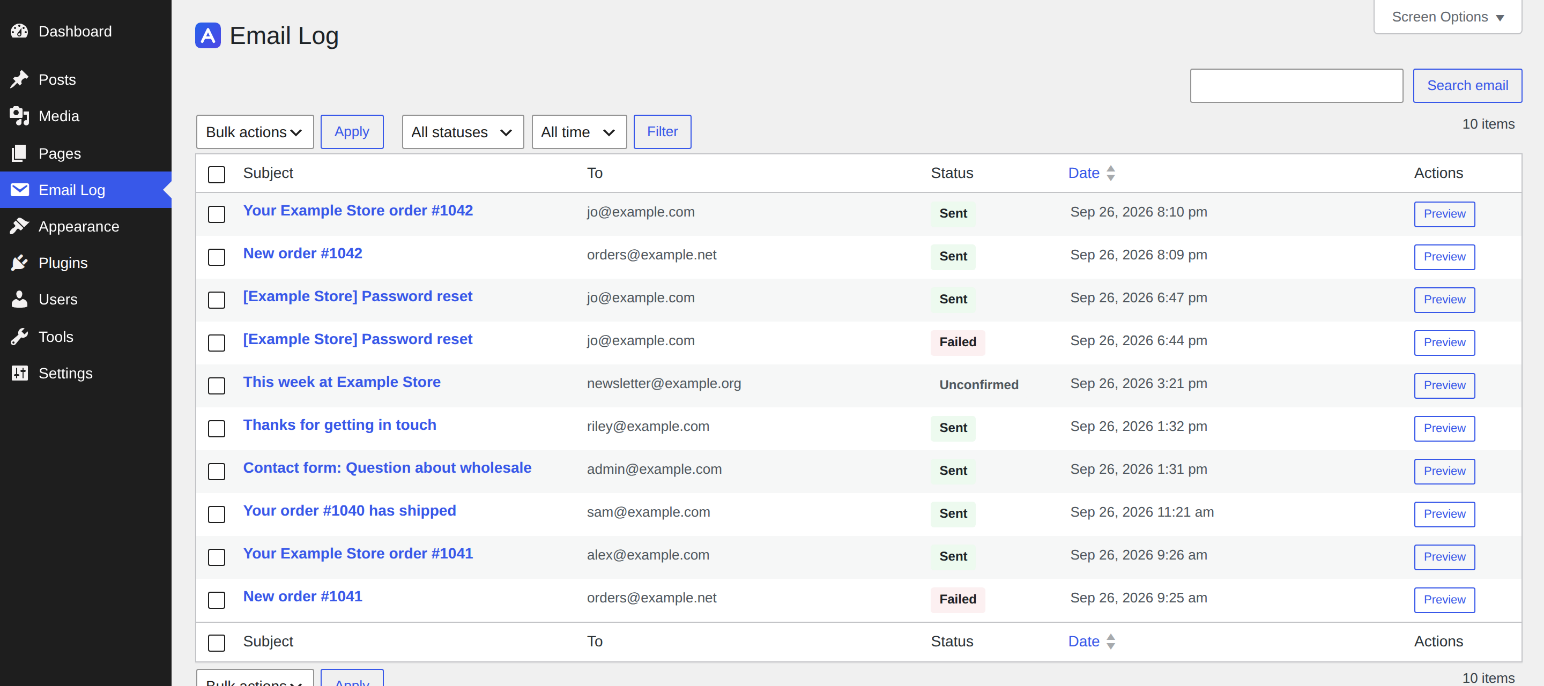
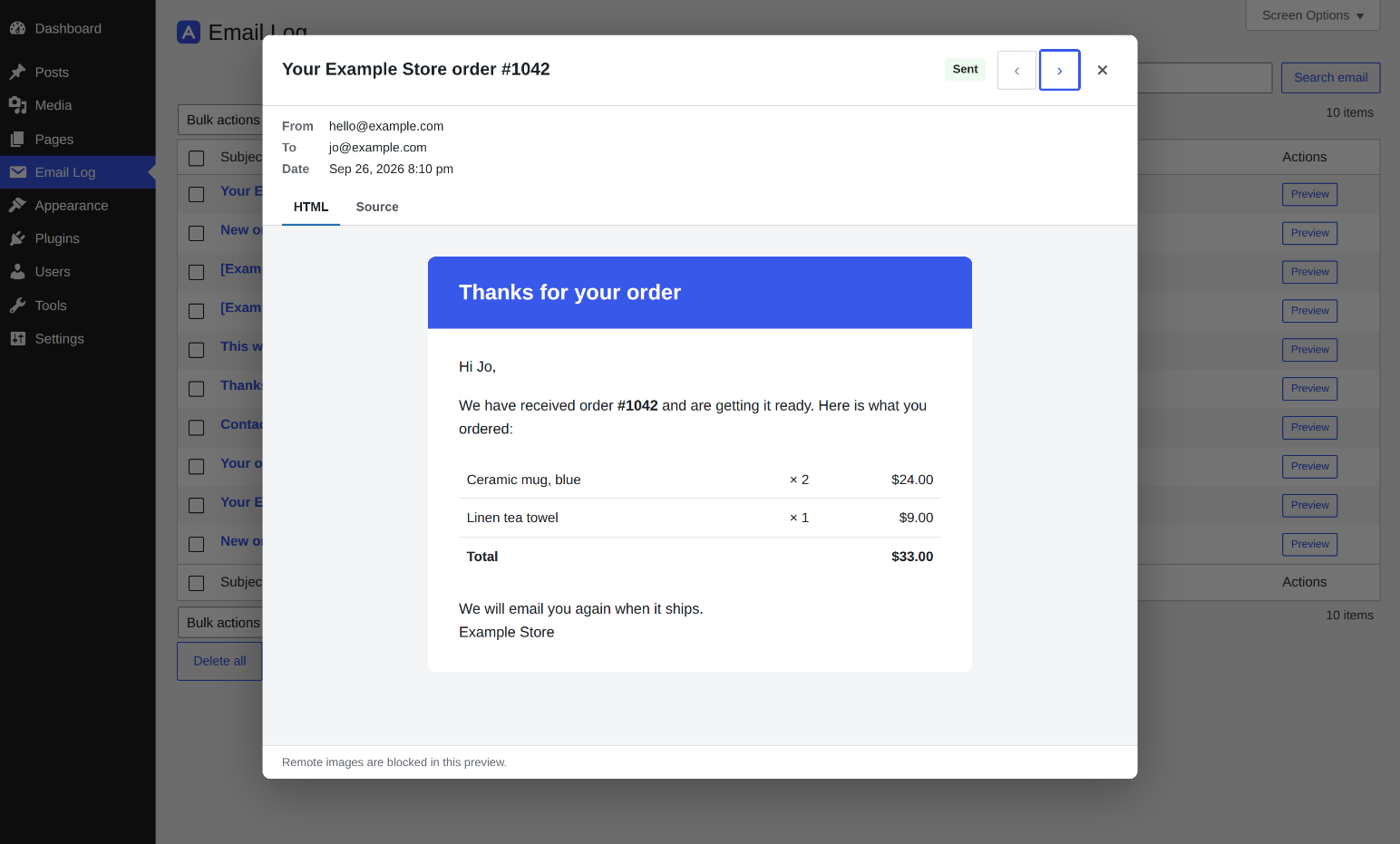
- Email Log — Email Log, in its own item in the admin menu by default (or under Tools, if you prefer), lists the email your site sends, with recipient, subject and whether it was sent or failed, plus filters by status and date and a search. Open any email to see its sender and headers, and the email itself the way it looked when it went out, with remote images blocked. Content storage can be switched off to keep only the envelope. Password-reset and sign-in links are removed before an email is stored. Works with or without the SMTP feature, and with other SMTP plugins too.
- Nice Default Emails — WordPress’s own plain-text emails (password resets, new-user and comment notices, update reports, personal data requests, and multisite sign-ups), and Adminkeep’s own contact form, go out in one clean HTML layout headed by your site’s name, with links you can click. WooCommerce and other plugins’ emails, and anything already sent as HTML, are left exactly as they are. No settings.
wp adminkeep emails send --all --to=you@example.comshows every one of them in your own inbox. - Contact Form — one simple form for any page: name, email and message, as a block or the
[adminkeep_contact_form]shortcode. Messages are emailed to you through WordPress’s own mailer, so the SMTP feature delivers them and Email Log shows whether each one went out, with the server’s error if it did not. Works out of the box, protected by a WordPress nonce that needs no keys (not for sites that cache their pages), or by Cloudflare Turnstile or Google reCAPTCHA v3 with your own free keys. Nothing is stored. The form prints its own small style and script with itself, so nothing extra loads on other pages, and the spam check’s script loads only on pages that show the form.
Admin
- User Registration Date — a sortable Registered column on the Users screen. WordPress records when every account was created but never shows it; this does, for every existing user, and newest-first sorting makes a wave of spam signups easy to spot. Guide
Content
- Duplicate — copy any post or page as a draft. Custom fields, taxonomies, the featured image and page builder layouts (Elementor, ACF) come along intact, and the original is never modified. Guide
- Live Draft — rework a published page in a private working copy, then publish it over the original. Same ID, same URL, and the old version is kept as a revision. Guide
- Keep URL — rename or move a page and its old address keeps working, child pages included. Fills the gaps WordPress leaves for pages and leaves posts to core. Guide
- Order — drag posts into the order you want on a dedicated Sort screen, one post type at a time. Lists that already ask for their own order, such as WooCommerce products and search results, are left alone. Guide
- Replace Media — upload a new version of a file over the old one. Same file type keeps the same URL; a different type updates the posts that use it and redirects the old address. Guide
Performance
A feature you have not enabled registers zero hooks and loads zero assets.
Links
External services
Adminkeep connects to no outside service unless you switch on a feature that needs one and set it up. Two features can: SMTP sends your site’s email through the mail server you enter, and the Contact Form uses the spam check you choose (its WordPress nonce option uses none). Nothing is sent to Adminkeep.
Cloudflare Turnstile (Contact Form, when you choose it). On pages that show the form, the visitor’s browser loads Cloudflare’s script from challenges.cloudflare.com, which receives the visitor’s IP address and browser details in order to tell people from bots. When the visitor presses Send, your site sends Cloudflare your secret key and the check’s one-time token, and nothing else, to confirm it. Terms: https://www.cloudflare.com/website-terms/ — Privacy policy: https://www.cloudflare.com/privacypolicy/
Google reCAPTCHA v3 (Contact Form, when you choose it). On pages that show the form, the visitor’s browser loads Google’s script from www.google.com (and the code it needs from www.gstatic.com), which receive the visitor’s IP address and browser details in order to score the visit. When the visitor presses Send, your site sends Google your secret key and the check’s one-time token, and nothing else, to confirm it. Terms: https://policies.google.com/terms — Privacy policy: https://policies.google.com/privacy
WP-CLI
Everything on the Adminkeep settings screen, plus the Custom CSS, Header & Footer Code, SMTP and Contact Form screens, can be done from a shell with wp adminkeep.
wp adminkeep feature list — every feature and whether it is on
wp adminkeep feature enable disable_comments — switch a feature on (or `disable` it)
wp adminkeep feature set order post_types=post,page — change a feature's settings
wp adminkeep setting set hide_unused=true — change a plugin-level setting
wp adminkeep comments purge — delete spam and trashed comments, in batches
wp adminkeep css set site.css — replace the Custom CSS from a file
wp adminkeep code set head analytics.html — replace one Header & Footer Code box (head, body or footer) from a file
wp adminkeep smtp set --host=smtp.example.com --port=587 — configure SMTP
wp adminkeep smtp test you@example.com — send a test email and see the server's reply
wp adminkeep emails send --all --to=you@example.com — see WordPress's own emails in the Nice Default Emails layout
wp adminkeep smtp import wp-mail-smtp — copy the SMTP connection settings from WP Mail SMTP
wp adminkeep contact-form set --provider=turnstile --turnstile-site-key=<key> — set up the contact form's spam protection (the secret goes in with `--turnstile-secret-stdin`)
wp adminkeep contact-form get — the contact form's settings, and whether it is live
Run wp help adminkeep for the full reference. A change made here is cleaned and checked exactly as it is on the screen, and a mistyped value is refused rather than guessed at.
Screenshots




Blocks
This plugin provides 1 block.
- Contact Form A name, email and message form that emails you, protected by Cloudflare Turnstile or Google reCAPTCHA.
Installation
- In your WordPress admin, go to Plugins Add New Plugin, search for “Adminkeep” and click Install Now, then Activate.
- Open Settings Adminkeep, or the Settings link under Adminkeep on the Plugins screen. Every feature starts off; switch on only the ones you want.
- To remove the plugin, deactivate and delete it as usual. Its settings and data are kept, so installing it again brings them back; to remove them as well, switch on Delete all Adminkeep data when the plugin is deleted under Settings Adminkeep Plugin settings before deleting. Nothing it changed while enabled outlives switching the feature off.
Or with WP-CLI:
wp plugin install adminkeep --activate
FAQ
-
Will this delete my comments?
-
Not unless you ask it to. Turning Disable Comments on only hides them — a test asserts the comment
rows are untouched after a full enable-and-disable cycle.There is a separate cleanup button that does delete, and it deletes spam and trashed comments
only unless you tick the box to include approved ones. It shows the exact count, asks you to
confirm, and cannot be undone. -
Can I turn it back off?
-
Yes, instantly. There is never a migration to run or a repair step to find.
The locks work purely through WordPress filters, so nothing was written to your database to undo —
switch one off and your site is exactly as it was. The Content features are deliberately different:
they write the things you asked them to write. A copy you made, an order you saved, a file you
replaced, a redirect recorded when you renamed a page — switching the feature off stops it doing
any more, and leaves what it already did alone. Work you did on purpose should not disappear
because you unticked a checkbox. -
Does this actually stop comment spam bots?
-
Yes. Bots usually POST straight to
wp-comments-post.phpwithout ever loading your page, so
hiding the comment form does nothing. Adminkeep refuses those requests with a 403 before
WordPress processes them, and refuses comment creation through the REST API as well. -
Is Installation Lockdown a security feature?
-
Not exactly, and it would be dishonest to say otherwise. It is enforced in PHP, so anyone with
filesystem, database or WP-CLI access can bypass it. It reliably stops accidents and casual
changes — a client uploading a plugin zip from who knows where, or overwriting an installed plugin with one. Treat it
as a policy guard, not a security boundary. -
Why not just use the DISALLOW_FILE_MODS constant?
-
Because it cannot be switched off from the admin. Once it is in
wp-config.phpyou need file
access to undo it, which strands people. Installation Lockdown filters capabilities instead, so
you can always turn it off from the settings screen. If you want the harder version, the constant
is still there and this plugin does not interfere with it. -
Does the SMTP feature work with Gmail or Microsoft 365?
-
Gmail and Google Workspace: yes, with an app password. Microsoft 365 and Outlook.com: no — Microsoft now requires signing in through Microsoft (OAuth) for SMTP, which this feature does not support. A dedicated SMTP plugin is the better choice there.
-
Where is my SMTP password kept?
-
Encrypted in your site’s database, which protects it in database backups. For the strongest setup define ADMINKEEP_SMTP_PASS (and the other ADMINKEEP_SMTP_* constants) in wp-config.php: values set there are not saved to the database, and the settings form does not display them.
-
Does the email log store password-reset links?
-
They are removed before an email is stored, along with sign-in and account-activation links. The
common link formats are covered, not every possible one, so treat it as a safeguard rather than a
guarantee. If you would rather not store email content at all, Email Log has a setting to keep
only the envelope — sender, recipient, subject and status — and switch content storage off. -
What happens to the email log if I switch the feature off?
-
Switching it off stops logging. What is already logged stays until you delete it, or delete the
plugin with “Delete all Adminkeep data when the plugin is deleted” switched on. While it is off nothing new is recorded and the entries are not aged out, so if
you want the log emptied, empty it first — from the Email Log screen, or with
wp adminkeep email-log purge –all — and then switch the feature off. -
What happens to my settings and data when I delete Adminkeep?
-
They stay, unless you ask otherwise. Deleting the plugin keeps its settings, your Custom CSS and
Header & Footer Code, the SMTP and contact form settings, the email log and the Keep URL redirects, so installing
it again brings everything back. To remove all of it when the plugin is deleted, switch on
“Delete all Adminkeep data when the plugin is deleted” under Settings Adminkeep Plugin
settings, or runwp adminkeep setting set delete_data=true. Deactivating never deletes anything. -
On the front end of your site, on every page. The Head box goes inside
<head>, before your theme’s own styles and scripts. The Body open box goes just after<body>opens, on themes that support it (current themes do). The Footer box goes at the end of the page, after WordPress’s own footer scripts. None of it is added to the admin, the login page, feeds or the REST API.Each box holds up to 64 KB. A snippet from an analytics or chat service is a few kilobytes; for anything larger, upload the script as a file and load it with
<script src="…"></script>. The code is printed exactly as you saved it, so check a snippet on a test page if you are unsure of it. Switching the feature off stops it printing and keeps the code. -
Where are contact form messages stored?
-
The form itself stores nothing: each message is emailed to you and that is all. If Email Log is on, it keeps a copy for its retention period, with whether the email went out, and WordPress’s own personal data export and erase tools find those copies by the visitor’s email address.
-
Why can’t visitors see my contact form?
-
It is hidden only while Cloudflare Turnstile or Google reCAPTCHA v3 is chosen without both of its keys saved. Open Settings Contact Form and save them, or choose WordPress Nonce, which needs none. Until then, administrators see a note where the form will appear and visitors see nothing. If the screen says the last submission failed, it names the reason, such as a secret key the provider refused.
-
Does the contact form work with page caching?
-
Not with the default spam protection, WordPress Nonce. A nonce expires within a day, so a page served from a cache for longer carries an expired one, and every message sent from it is refused. On a site with a caching plugin, a host-level cache or a CDN that caches pages, choose Cloudflare Turnstile or Google reCAPTCHA v3 under Settings Contact Form.
With either of those, yes. The form’s markup is then the same for every visitor and carries no nonce or session, so a cached page keeps working. The spam check runs afresh on every send, and the message goes out through a REST request that is not cached.
-
Does the contact form slow down my other pages?
-
No. The form carries its own small style and script, printed right after it, so there is no extra file to load on pages without the form, which suits page builders. Cloudflare’s or Google’s script is added only on pages that show the form.
-
Can I manage Adminkeep with WP-CLI?
-
Yes, since 1.5.0.
wp adminkeep feature listshows every feature, andwp help adminkeeplists the commands for switching features, changing their settings, cleaning up comments, replacing the Custom CSS or the Header & Footer Code, configuring SMTP and the contact form, and choosing whether the settings screen hides unused features for a user. If Installation Lockdown has locked you out of the admin,wp adminkeep feature disable install_lockis the way back in.
Reviews
There are no reviews for this plugin.
Contributors & Developers
“Adminkeep – Email Log, Custom CSS, Disable Comments, Site Lockdown & Admin Enhancements” is open source software. The following people have contributed to this plugin.
Contributors
Interested in development?
Browse the code, check out the SVN repository, or subscribe to the development log by RSS.
Changelog
2.4.0
- New: the Contact Form works out of the box, protected by a WordPress nonce: no keys and no outside service. Not for sites that cache their pages; choose Cloudflare Turnstile or Google reCAPTCHA there.
- Changed: the Contact Form’s “None (form hidden)” choice is gone. To take the form down, remove its block or shortcode, or switch the feature off.
- Improved: the contact form’s fields have a clean look of their own on themes that do not style form fields, such as Twenty Twenty-Five. Themes that do still win.
- Improved: the contact form’s email says which page it was sent from on any page of the site, archives and author pages included.
- Changed: Settings Contact Form shows how to place the form in a side box, and warns only when the form is hidden.
- Fixed: after switching the contact form’s spam protection, the screen no longer shows the old provider’s last error.
2.3.0
- New: Contact Form, in the Email group. A name, email and message form for any page, as a block or the
[adminkeep_contact_form]shortcode, emailed to you through WordPress’s own mailer, so SMTP delivers it and Email Log shows whether it went out. Protected by Cloudflare Turnstile or Google reCAPTCHA v3 with your own keys, and hidden until they are set. Nothing is stored. The form carries its own small style and script, and the spam check’s script loads only on pages that show the form. Settings under Settings Contact Form, orwp adminkeep contact-form get|set. - Changed: Nice Default Emails also dresses up the contact form’s own emails.
- New: the readme has an External services section. Adminkeep connects to an outside service only when you switch on SMTP or the contact form and set it up.
- Improved: the Live Preview on wordpress.org opens on Email Log with a few sample emails.
2.2.0
- Changed: deleting Adminkeep now keeps its settings and data, so installing it again brings them back. To remove everything when the plugin is deleted, switch on “Delete all Adminkeep data when the plugin is deleted” in the new Plugin settings tab under Settings Adminkeep, or run
wp adminkeep setting set delete_data=true. - New: Header & Footer Code can be read and saved over the REST API at
adminkeep/v1/header-footer-code, so a site reached with an application password can have it updated. Boxes left out of a save are kept. The same permissions and checks apply as on the Header & Footer Code screen. - Improved: Custom CSS and Header & Footer Code save without reloading the page.
- Fixed: deleting the plugin now also clears the scheduled Live Draft clean-up, and deleting it with its data also removes the marker Live Draft leaves on a merged copy.
2.1.0
- New: edit Custom CSS on your live site. Edit CSS in the admin bar opens a code panel beside the page, and the page restyles as you type, the way the Customizer’s CSS box did. Nothing is saved until you press Save. The panel stays open while you browse to other pages, until you close it. Appearance Custom CSS opens it too, from its Live preview box.
- New: a Custom CSS setting, “Show Edit CSS in the admin bar”, on by default. Untick it to hide the admin bar item; the panel still opens from Appearance Custom CSS.
- New: Custom CSS can be read and saved over the REST API at
adminkeep/v1/custom-css, so a site reached with an application password can have its CSS updated without logging in to wp-admin. The same permissions and checks apply as on the Custom CSS screen. - Changed: the settings now list the feature groups as Site Lock, Appearance, Email, Admin and Content.
2.0.0
- New: Header & Footer Code, in Appearance. Three boxes (Head, Body open and Footer) for analytics and verification tags, tag managers and chat widgets, printed on the front end of every page exactly as saved. Each box shows who last changed it and when, and holds up to 64 KB. Only administrators who are allowed to post unfiltered HTML can open it.
- New WP-CLI commands:
wp adminkeep code get <head|body|footer>prints one box, andwp adminkeep code set <head|body|footer> [<file>]replaces it from a file or standard input. - Changed: Email Log now has its own item in the admin menu, right below where the Email Log plugin puts its own, with a different envelope icon so the two can be told apart. To keep it under Tools, tick “Show Email Log under the Tools menu” in the Email Log settings. Old Tools Email Log links still work.
- Changed: the Adminkeep logo beside each feature screen’s heading (Email Log, SMTP, Custom CSS, Header & Footer Code, Sort, Replace file) opens that feature’s own settings instead of the settings overview.
- Changed:
wp adminkeep css getprints the CSS exactly as stored, with no newline added, so its output can be piped back intocss setunchanged. - Fixed: Custom CSS that starts with a blank line keeps it when saved from the screen.
1.10.0
- New: Nice Default Emails, in Email. WordPress’s own plain-text emails (password resets, new-user and comment notices, update reports, personal data requests, and multisite sign-ups; 25 in all) go out in one clean HTML layout headed by your site’s name, with clickable links. WooCommerce and other plugins’ emails, and anything already sent as HTML, are left as they are. No settings. Developers can keep an email plain with the
adminkeep_nice_emails_wrapfilter. - New: Settings SMTP can copy your SMTP connection settings from WP Mail SMTP in one click (server, port, encryption, username, password, From address and name). Only SMTP-mailer setups can be copied; values held in wp-config.php are kept.
wp adminkeep smtp import wp-mail-smtp [--dry-run]does the same from a shell. - New WP-CLI commands:
wp adminkeep emails listandwp adminkeep emails send <id>...|--all --to=<email>send WordPress’s own emails to one address so you can see them in a real inbox. - Fixed: Disable File Editing now applies to super admins on a multisite network.
1.9.0
- New: Username Privacy, in Site Lock. Author pages and the
?author=1probe answer “not found” to visitors, the REST users list is closed to them, authors are left out of the sitemap (WordPress’s own and Yoast SEO’s) and out of embed previews, and author names in your theme stop linking to author pages. Logged-in users see everything as before; nothing is written.
1.8.1
- Changed: “Hide unused features” is now one setting for the whole site instead of one per administrator. If any administrator had it on, it stays on.
- Changed: WP-CLI
wp adminkeep viewis replaced bywp adminkeep setting get [<key>]andwp adminkeep setting set key=value, the same shape asfeature set, so plugin-level settings and feature settings read alike.wp adminkeep setting set hide_unused=truedoes whatview hide-unused --user=<user>did, for the whole site.
1.8.0
- Fixed: with Installation Lockdown on, “View details” for a plugin (from an update notice or a “Requires:” line) opened on an error. It now opens; installing from it is still blocked.
- New WP-CLI commands:
wp adminkeep view get|hide-unused|show-all --user=<user>read and set whether the settings screen hides unused features for that user. (Replaced in 1.8.1 bywp adminkeep setting set hide_unused=true|false, site-wide.)
1.7.0
- New: Email Log. Tools Email Log lists the email your site sends, with recipient, subject and whether it was sent or failed, plus filters by status and date and a search; the sender, headers and content are one click away in the preview.
- New: Email Log filters sit in the list’s top bar, with a Period filter (1 hour to 30 days, or a custom date range), and Screen Options shows or hides columns, including a From column that starts hidden.
- New: Preview a logged email in a window, rendered as it was sent, with its source a tab away. Scripts and remote images are blocked in the preview. Emails that carry both HTML and plain text show each in its own tab.
- The log records the sender an SMTP plugin really used, even one that sets it at send time such as FluentSMTP, with the sender’s name.
- Password-reset, sign-in and activation links are removed before an email is stored, and you can switch content storage off.
- Old entries are deleted automatically (30 days by default; choose from 7 days up to 2 years) and the log is trimmed to the newest 10,000.
- New WP-CLI commands:
wp adminkeep email-log list|get|count|purge. - New: bring your history across from the Email Log plugin with
wp adminkeep email-log import email-log. Emails are stored the way Adminkeep would have stored them (links removed, the retention setting respected), running it again only adds what is new, and the other plugin’s log is left as it was. - New: while the Email Log plugin is active, Tools Email Log shows a “Copy from Email Log” button that does the same import from the screen, and says how many emails it copied and skipped.
- Works with or without the SMTP feature, and only administrators can open the log.
- Changed: Adminkeep’s settings moved from their own top-level menu to Settings Adminkeep. Old links and bookmarks still work, and the Plugins screen now has a Settings link.
- Fixed: saving the SMTP screen while ADMINKEEP_SMTP_* constants were set in wp-config.php cleared the saved values for those fields, so removing the constants later left SMTP without a host or password. The saved values are now kept, as
wp adminkeep smtp setalready did.
1.6.0
- New: “Hide unused features” on the settings page. Switch it on and the menu lists only the features you use. Search still finds the rest. (Per administrator until 1.8.1 made it site-wide.)
- Improved: the Overview lists the features you have switched on first, and its “features enabled” count updates as soon as you save.
- Improved: the Registered column on the Users screen is narrower and shows a short month (Jan 10, 2024).
- Fixed: the SMTP test email was sent twice.
- Fixed: notices from other plugins were squeezed into the Adminkeep header on the settings page. They now sit above it.
- Fixed: after switching on Custom CSS or SMTP, the link to its screen appears as soon as you save, without reloading.
- Fixed: the settings filter only searched the first group.
1.5.0
- New: WP-CLI.
wp adminkeepswitches features on and off, changes their settings, cleans up comments, replaces the Custom CSS, configures SMTP and sends a test email. Runwp help adminkeepto see every command.
1.4.0
- New: SMTP, in a new Email group. Send your site’s email through any SMTP server, with provider presets, a test email that shows the server’s own reply, and settings that can live in wp-config.php.
- Changed: screens Adminkeep adds elsewhere in the admin (SMTP, Custom CSS, Order, Replace file) now carry a small Adminkeep mark at the start of the heading, linking to the Adminkeep settings. The settings page shows the mark too.
1.3.0
- New: User Registration Date — a sortable Registered column on the Users screen, in a new Admin group. It uses the date WordPress already stores, so every existing user has one.
- Changed: the switch on each panel now reads “Enable this feature”.
- Removed: the Overview note about Version Lock leaving in 1.1.0.
1.2.0
- New: Custom CSS — site-level front-end CSS under Appearance Custom CSS. It belongs to the site, not the theme, so it stays when you switch themes.
- Changed: internal names now match the plugin name. Settings and redirects are carried over automatically.
- Changed: plugin and author links now point to adminkeep.com.
1.1.0
- Initial release.