
Description
AI Featured Image Generator lets you create AI-powered featured images right from the WordPress editor. Hit “Generate Featured Image” on any post, and the plugin uses OpenAI (or Google Gemini for Pro users) to generate a unique image based on your post title, chosen style, and an optional custom prompt. You can also choose whether to allow text on the generated image or keep it text-free.
Every generated image automatically gets alt text set in the WordPress media library — improving SEO and accessibility without any extra work. You can configure the alt text source (post title, prompt, or a custom template with placeholders like {title}, {style}, and {site_name}), or turn it off entirely from the General settings tab.
Free users get a Bulk Generate tab to create featured images for up to 5 posts per batch (50 images lifetime). Pro users unlock unlimited bulk generation, advanced filters, Gemini support, and an AI Image Generator block for adding inline images directly inside the Gutenberg editor. Everything is managed from one settings hub.
Video Walkthrough
Free Features
- OpenAI Integration: Generate images using OpenAI’s image generation API
- Multiple AI Models (OpenAI): Choose from ChatGPT Image Latest (auto-updated), GPT Image 1.5, GPT Image 1 (Standard), and GPT Image 1 Mini (budget-friendly)
- Custom Prompts: Fine-tune results with your own prompt input
- 13 Style Presets: Common (None, Realistic, Artistic, Cartoon, Minimalist) and Creative (Sketch, Watercolor, 3D Render, Pixel Art, Cyberpunk, Fantasy, Anime, Technicolor)
- 3 Image Sizes (OpenAI): Square (1024×1024), Portrait (1024×1536), and Landscape (1536×1024)
- Output Formats (OpenAI): WebP (default), PNG, or JPEG
- Quality Control (OpenAI): Set default image quality from 1 to 100
- Text Control: Allow or disallow text, captions, or words in generated images
- Auto Alt Text: Automatically sets alt text on all AI-generated images for better SEO and accessibility. Choose from post title, generation prompt, or a custom template with
{title},{prompt},{style}, and{site_name}placeholders. Option to preserve manually edited alt text when regenerating images - SEO-Friendly Filenames: Images use your post title for better organization and SEO
- Bulk Generate (Limited): Up to 5 posts per batch, 50 images lifetime, filtered by post status
- Multisite Support: Fully compatible with WordPress multisite
Pro Features 🚀
- Google Gemini Support: Google Gemini Support: Access Google’s AI image generation with multiple models: Nano Banana (Gemini 2.5 Flash), Nano Banana 2 Preview (Gemini 3.1 Flash, higher resolutions), and Nano Banana Pro (Gemini 3 Pro, premium quality)
- Bulk Generate (Unlimited): Generate for hundreds of posts at once with filters for post type, status, date range, and thumbnail status. Select individual posts or all, with real-time progress tracking
- Gutenberg Block: Add AI-generated inline images anywhere in your content using the AI Image Generator block
- Custom Post Types: Enable image generation for any custom post type, not just posts and pages
- 10 Aspect Ratios (Gemini): 1:1, 2:3, 3:2, 3:4, 4:3, 4:5, 5:4, 9:16, 16:9, 21:9
- Higher Resolutions (Gemini): Up to 4K with supported Gemini models
- Custom Styles: Create named styles with custom prompt descriptions that appear in all style dropdowns
- Inline Image Settings: Dedicated tab for configuring defaults for inline images
Want to unlock Google Gemini AI, unlimited bulk generation, inline image generation and more? Upgrade to Pro here.
Requirements
- WordPress 5.8 or higher
- PHP 7.4 or higher
- OpenAI API key (Pro users can also use Google Gemini API key)
External Services
This plugin connects to external AI services to generate AI-powered images for your WordPress posts and pages. The free version uses OpenAI for featured image generation, while Pro users can also choose Google Gemini as their provider and generate both featured images and inline images using the Gutenberg block editor.
OpenAI Service (Free & Pro)
When using OpenAI as your provider:
– Your post title and content are sent to OpenAI’s API when you generate a featured image
– When generating inline images (Pro), your custom prompt is sent to the API
– Any custom prompt you provide is sent to the API
– Your OpenAI API key is used for authentication with each request
– Image generation requests are sent to OpenAI’s servers when you click the “Generate Featured Image” button or generate inline images using the Gutenberg block
Service Provider: OpenAI
– Terms of Service
– Privacy Policy
– API Documentation
Google Gemini Service (Pro only)
When using Google Gemini as your provider:
– Your post title and content are sent to Google’s Gemini API when you generate a featured image
– When generating inline images, your custom prompt is sent to the API
– Any custom prompt you provide is sent to the API
– Your Google Gemini API key is used for authentication with each request
– Image generation requests are sent to Google’s servers when you click the “Generate Featured Image” button or generate inline images using the Gutenberg block
Service Provider: Google AI (Gemini)
– Terms of Service
– Privacy Policy
– API Documentation
Data Usage:
– Your post content and prompts are processed by the selected AI provider’s models to generate images
– Generated images are stored in your WordPress media library
– No personal data is stored by the providers beyond what’s necessary for API processing
– You are responsible for ensuring your content complies with the selected provider’s usage policies
Screenshots
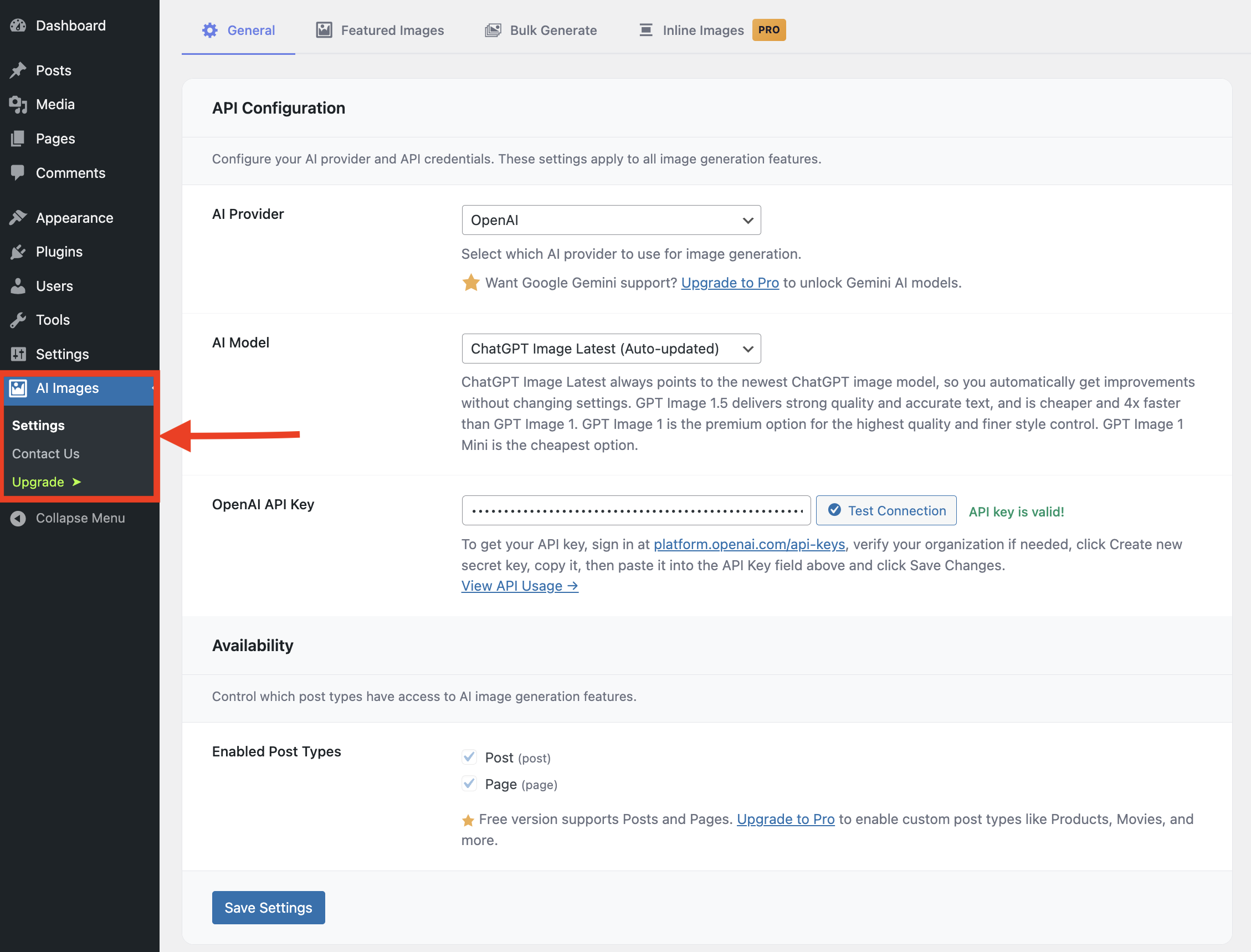
General settings — API configuration, provider selection, and post type availability 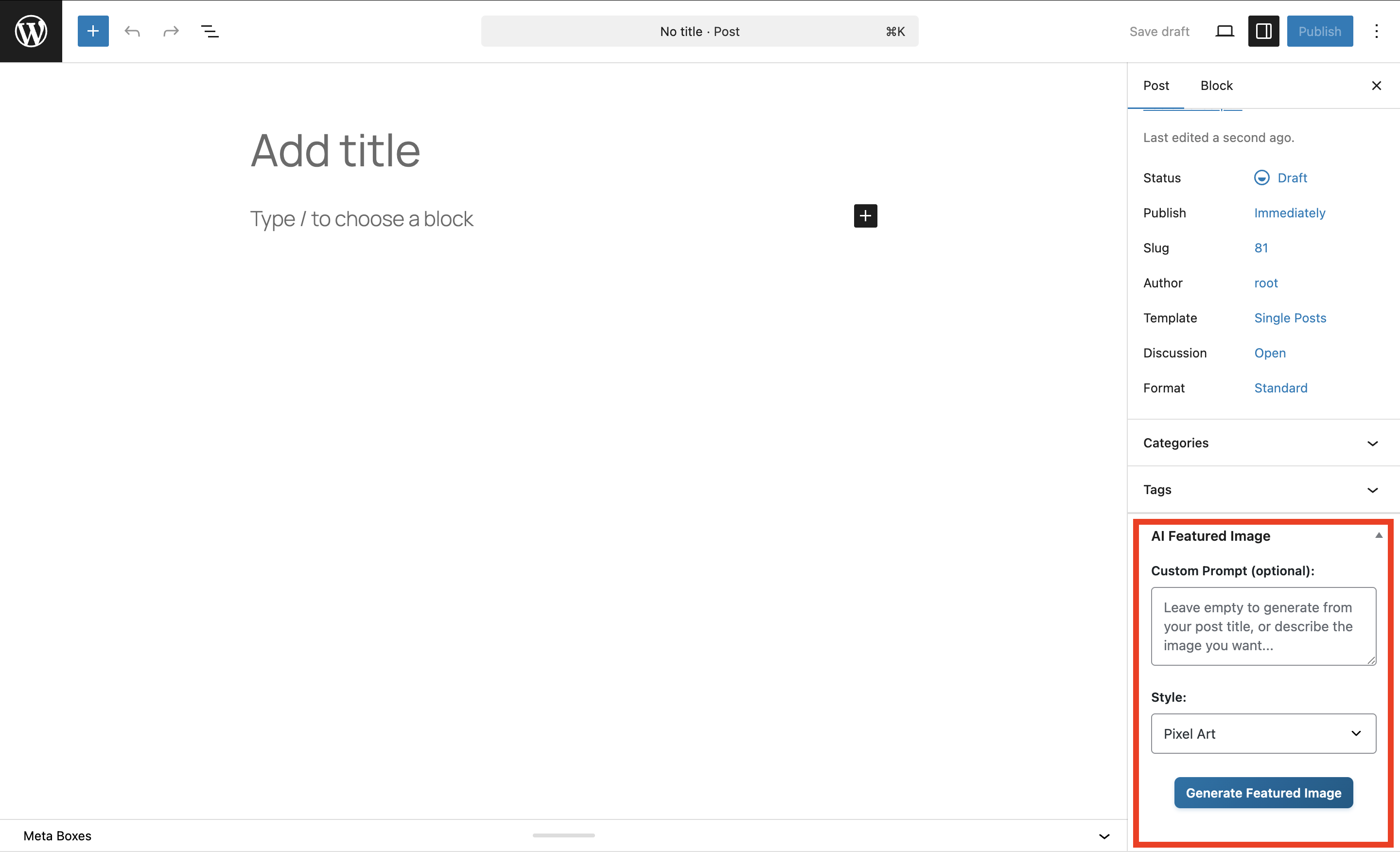
Post editor meta box — custom prompt, style picker, and Generate Featured Image button 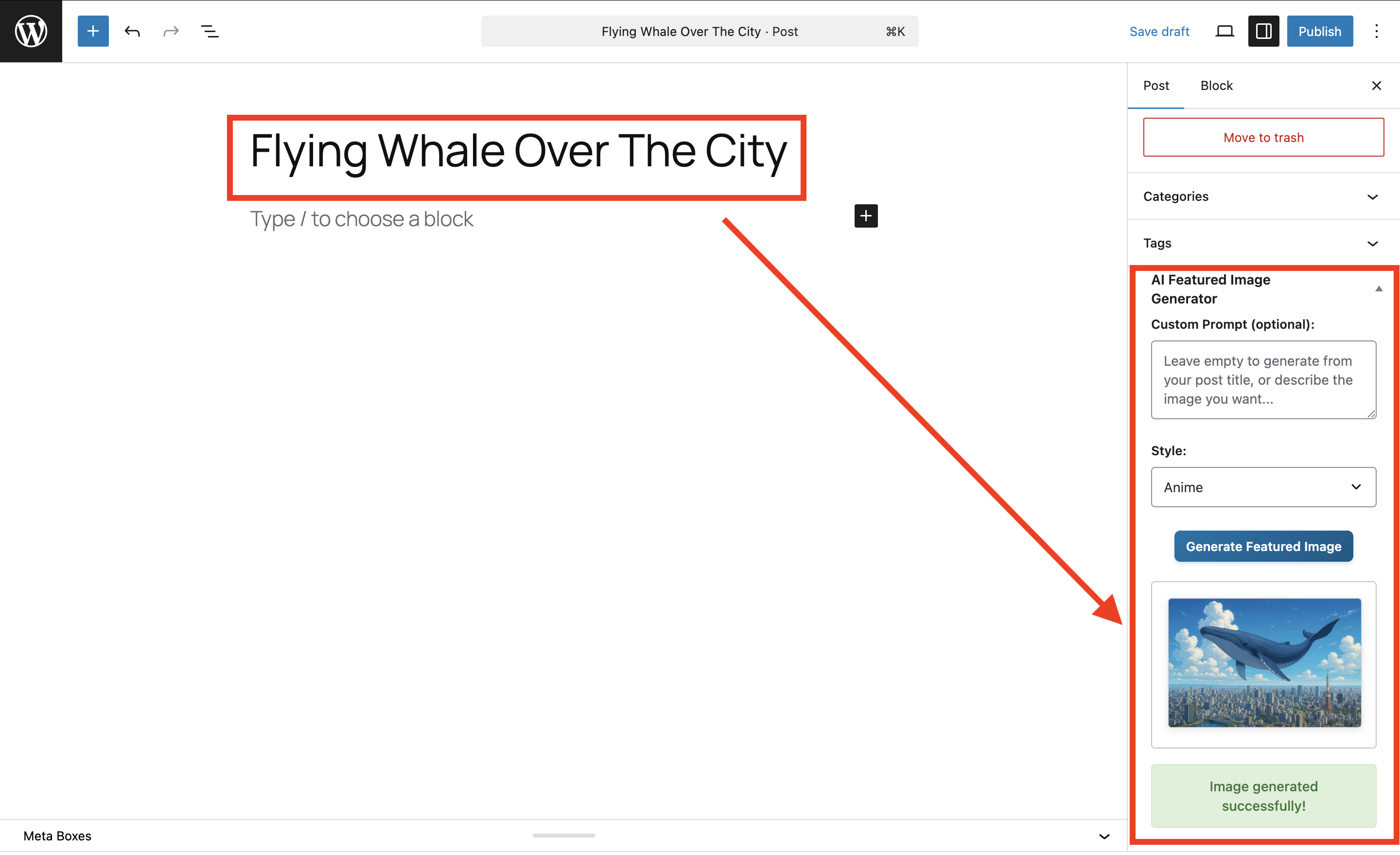
Generated image preview — AI-generated featured image set directly from the post editor 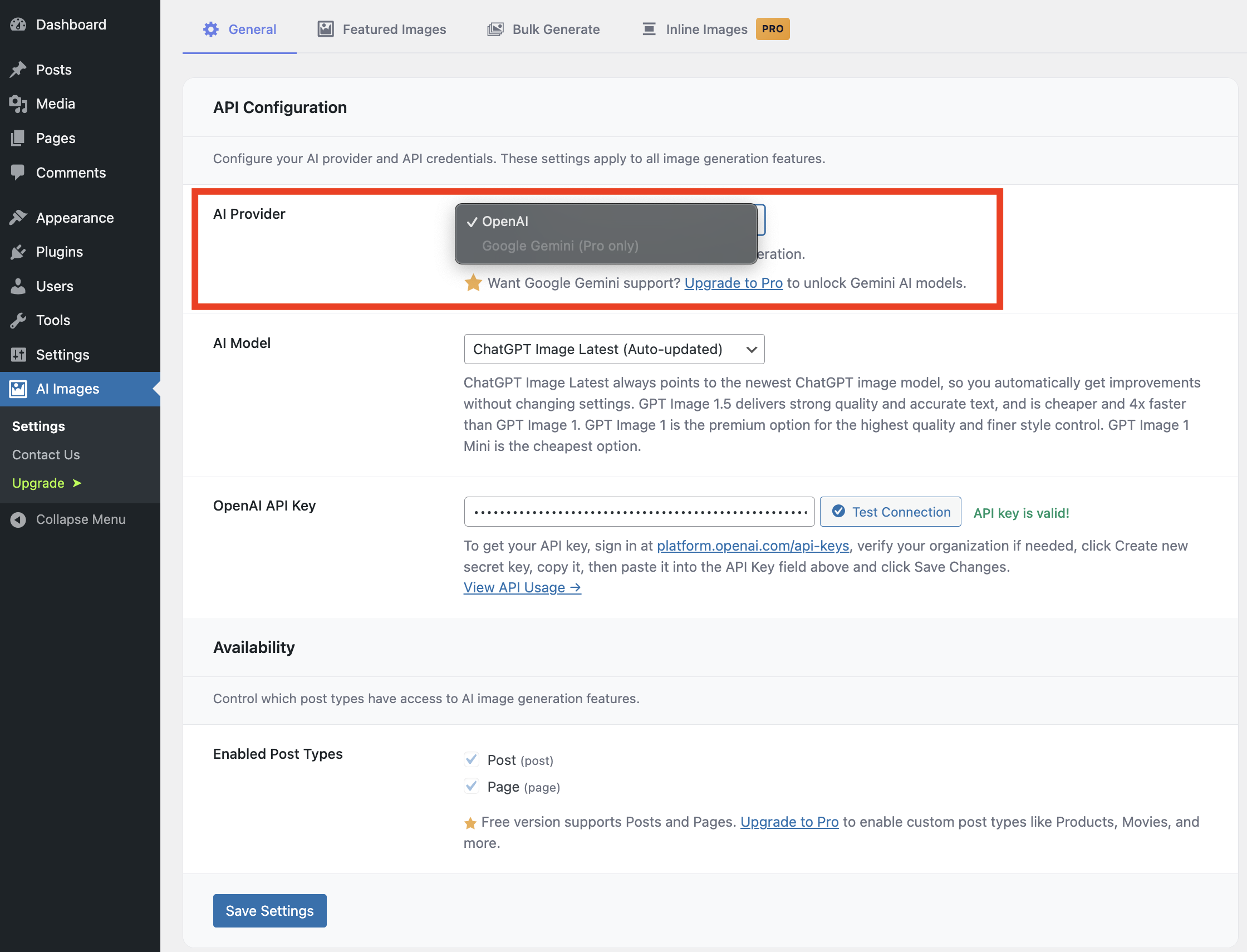
AI Provider selector — choose between OpenAI and Google Gemini (Pro) 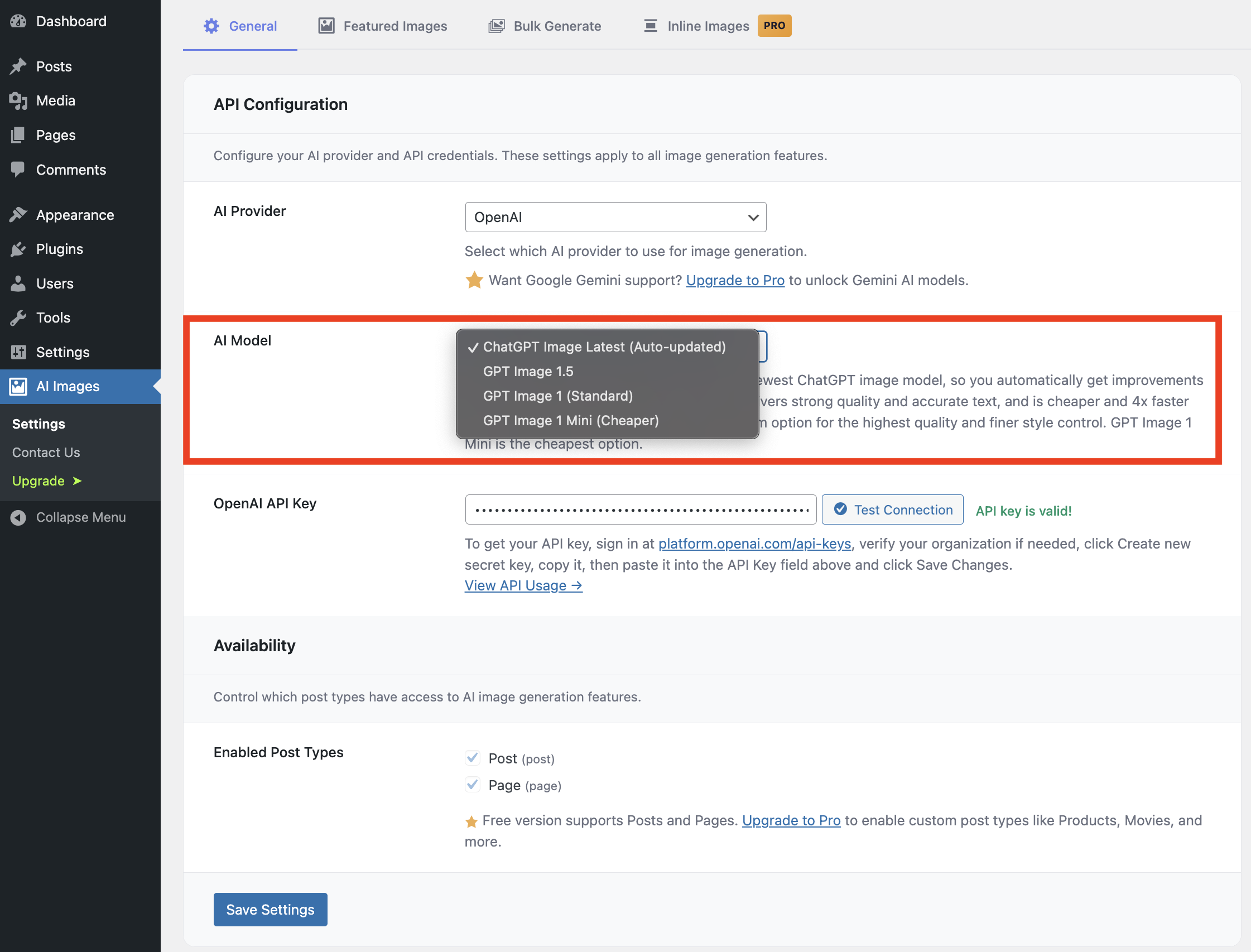
AI Model selector — pick from ChatGPT Image Latest, GPT Image 1.5, GPT Image 1, or GPT Image 1 Mini 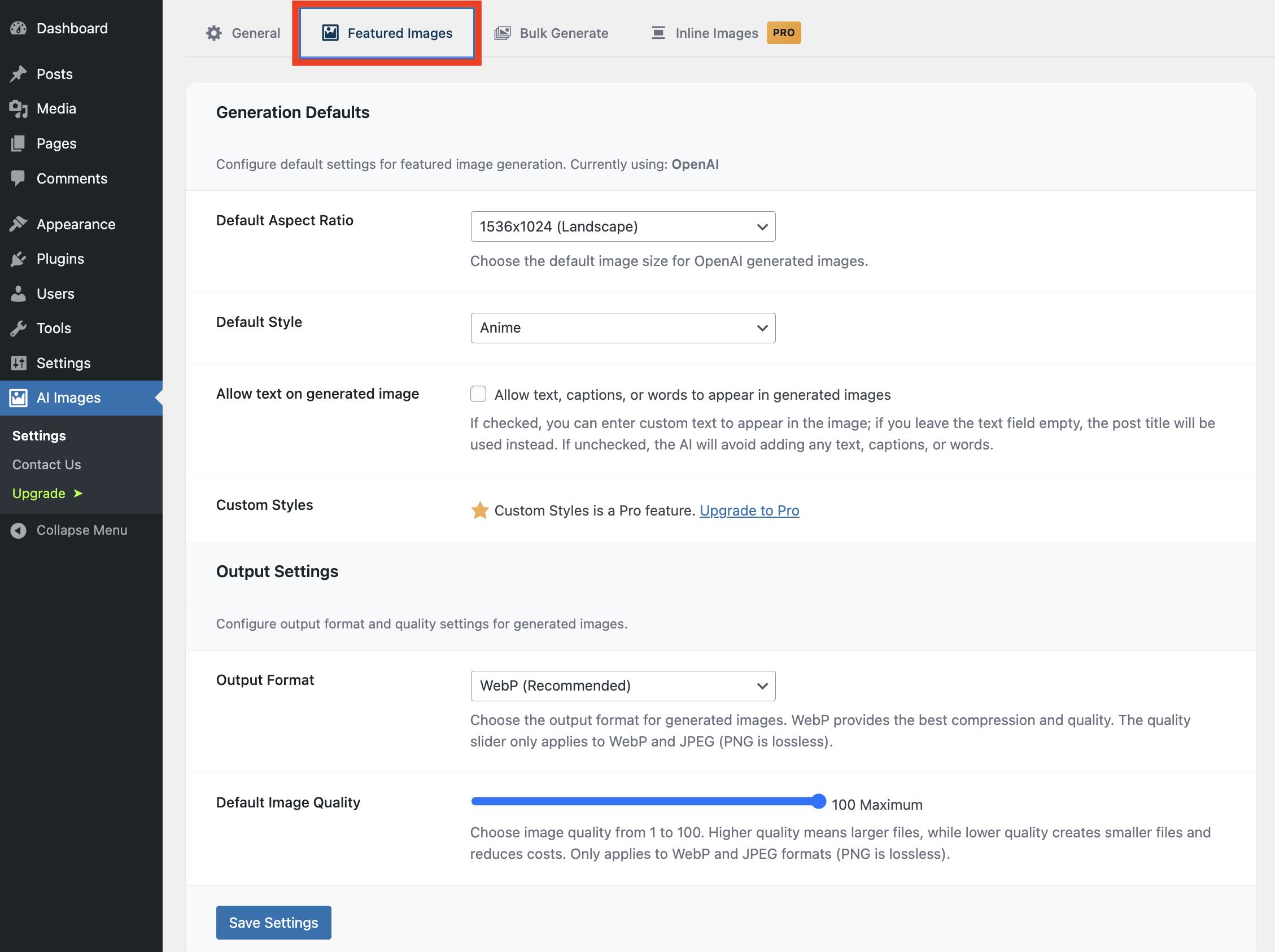
Featured Images settings — default aspect ratio, style, text options, and output format 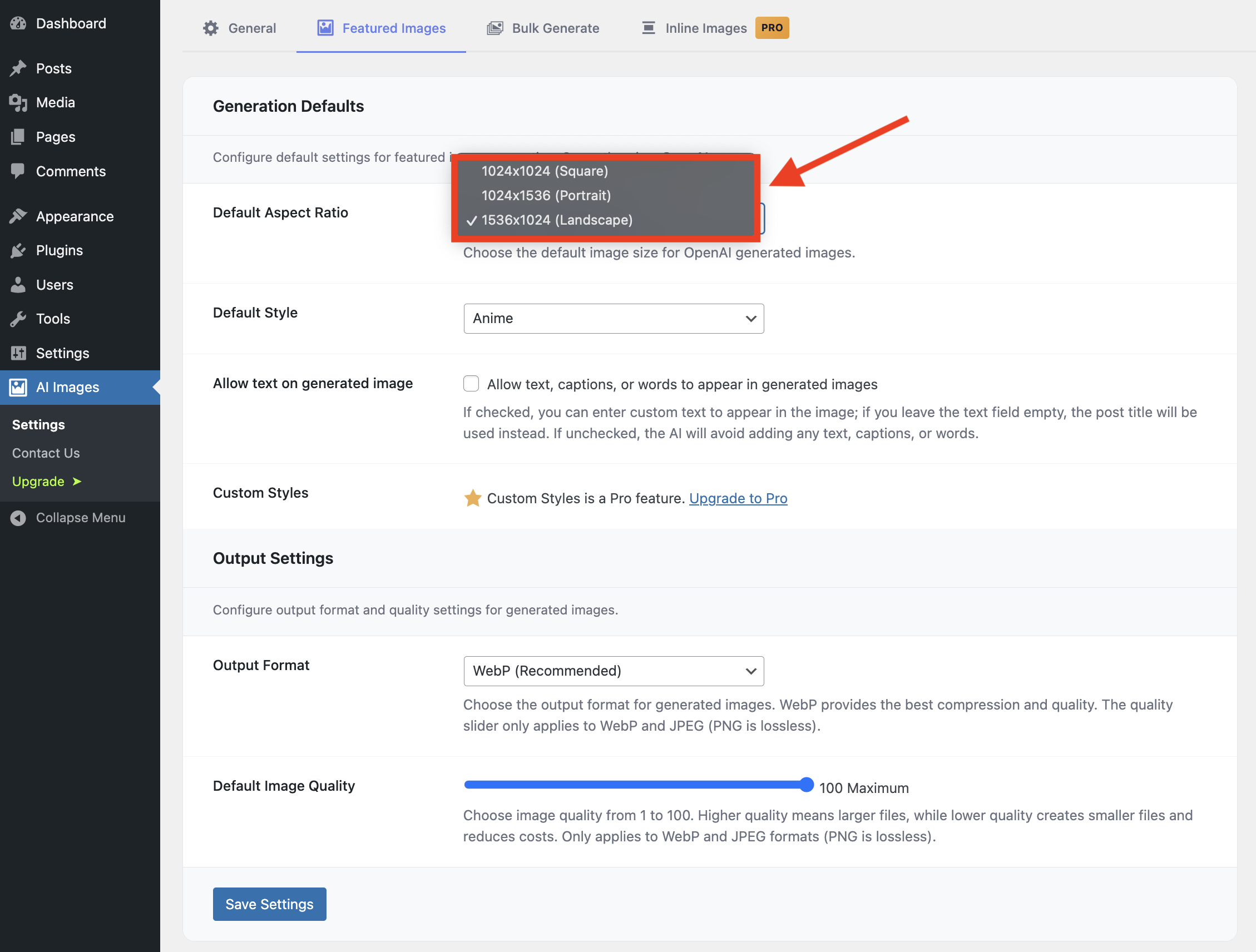
Aspect ratio options — choose Square, Portrait, or Landscape for generated images 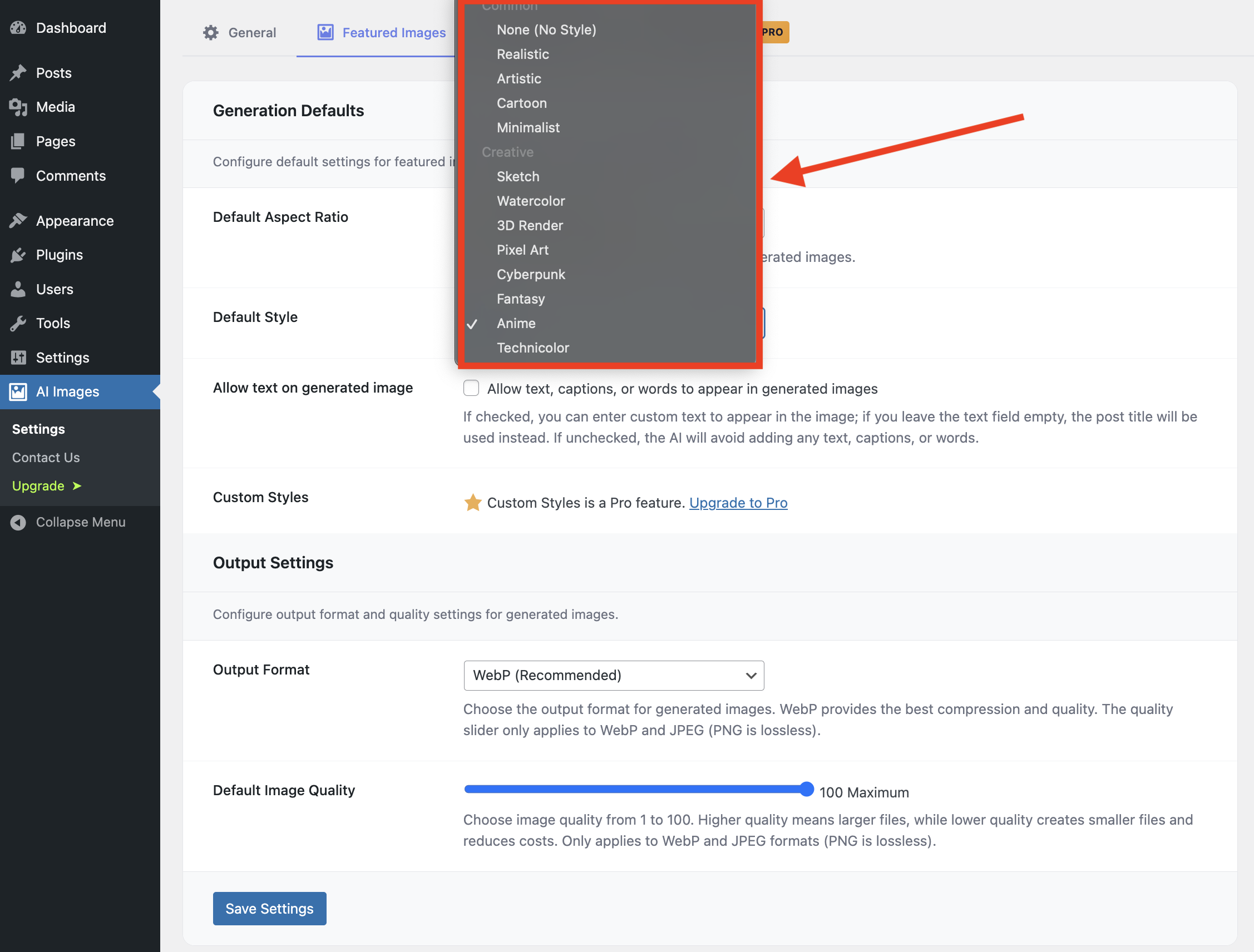
Style presets — 13 styles organized into Common and Creative groups 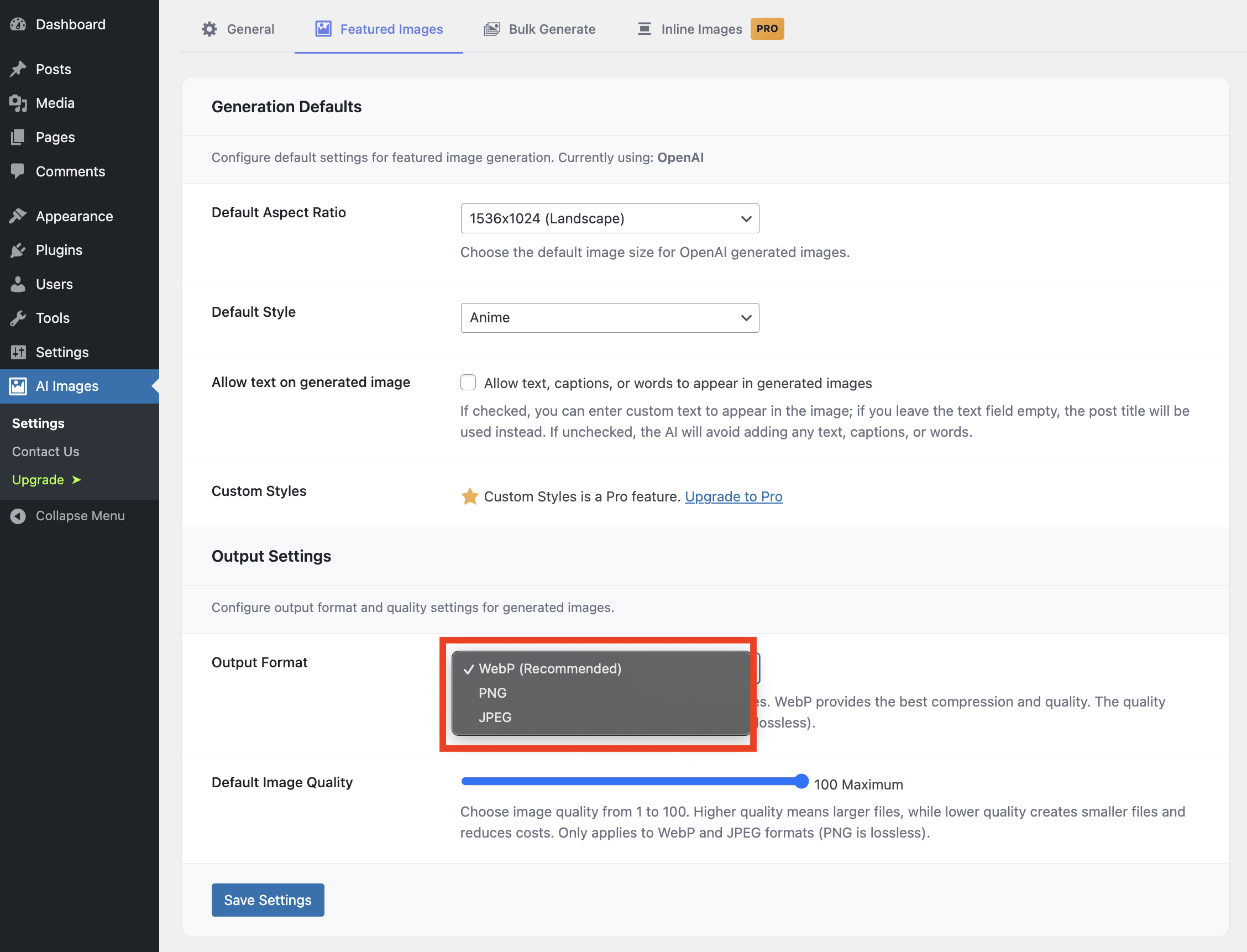
Output format selector — WebP (recommended), PNG, or JPEG 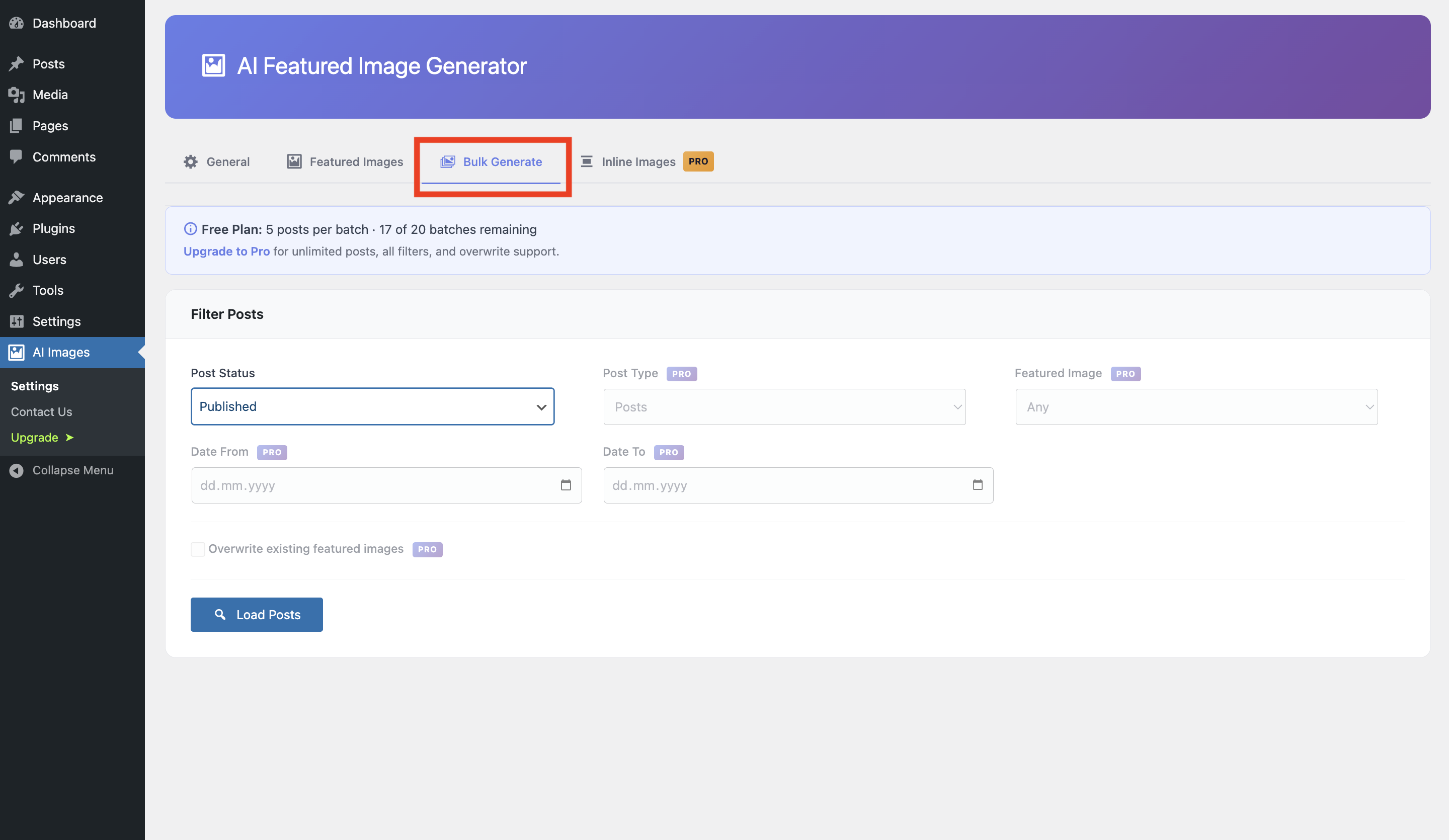
Bulk Generate tab — filter posts and generate featured images in batches 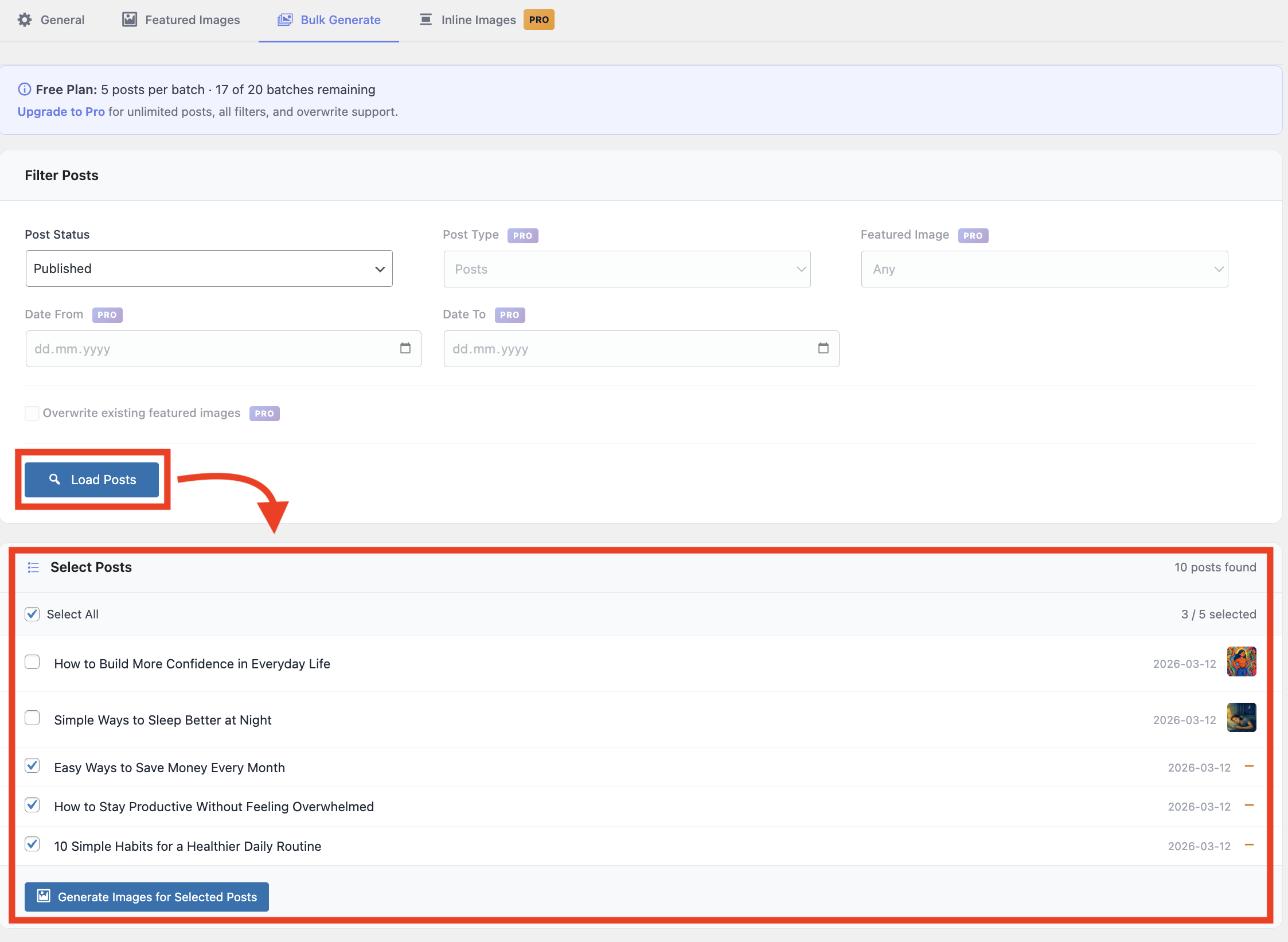
Bulk Generate — select posts and start batch generation 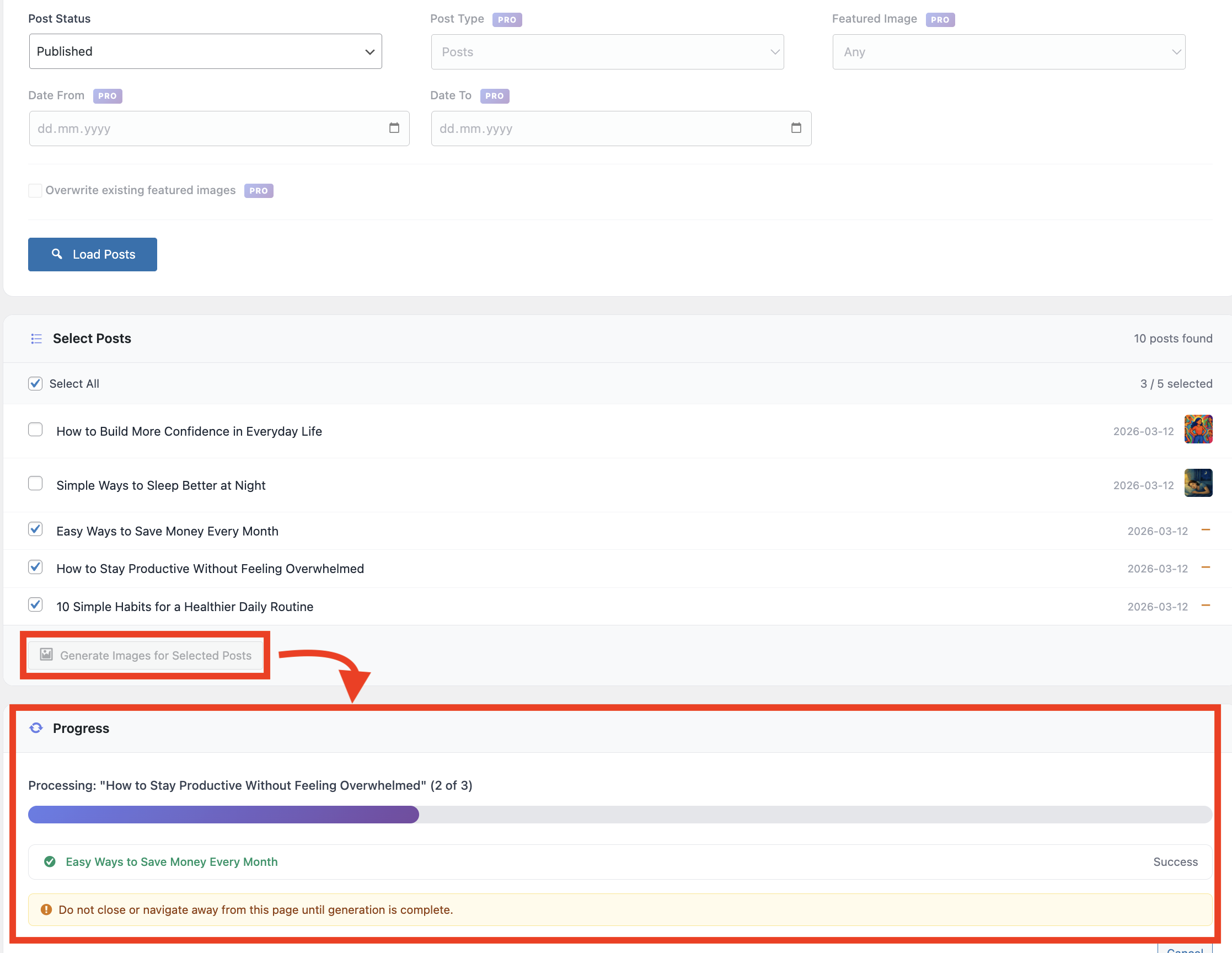
Bulk Generate progress — real-time progress bar with per-post status 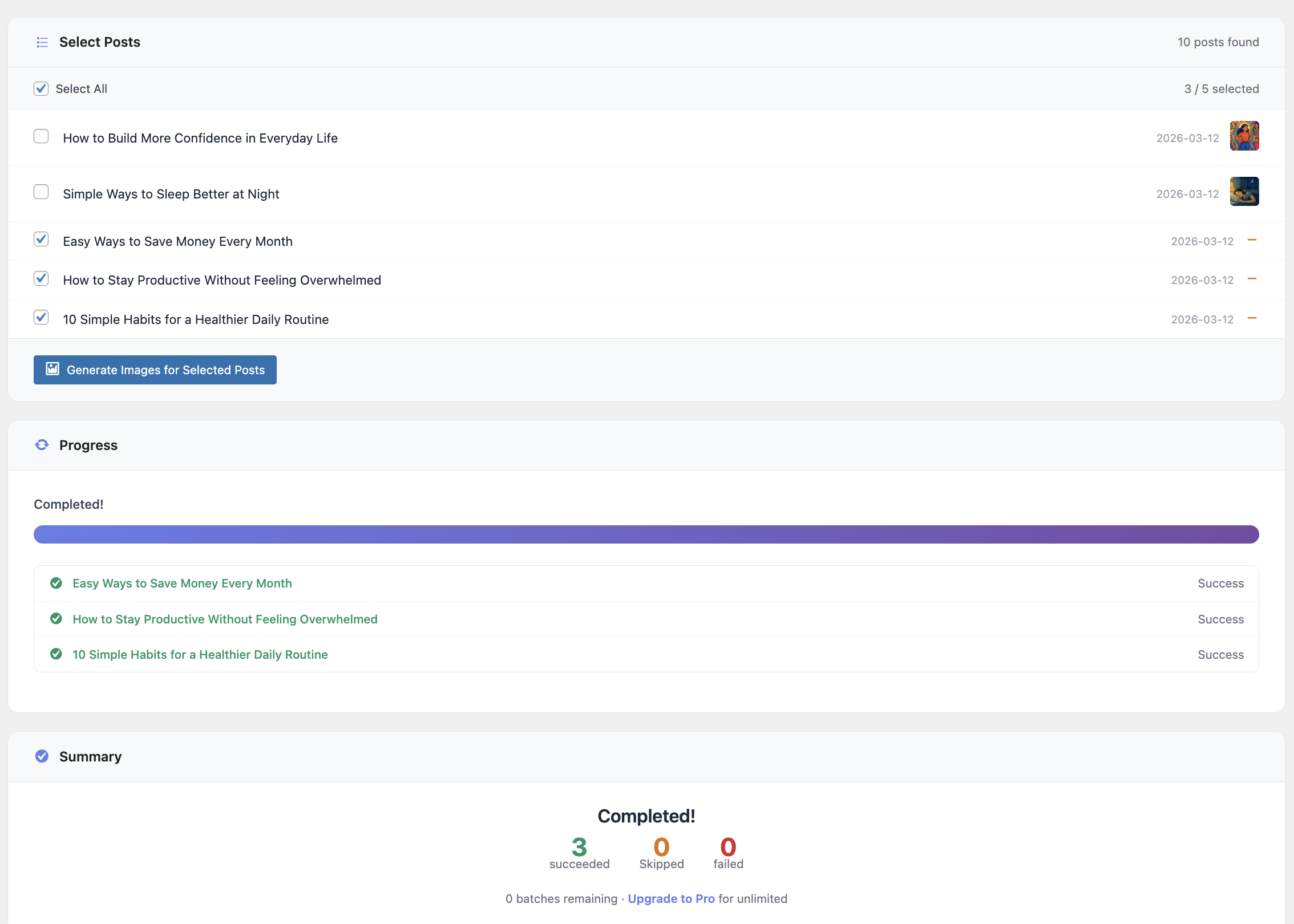
Bulk Generate summary — completed results with success, skipped, and failed counts
Blocks
This plugin provides 1 block.
- AI Image Generator Generate AI-powered images inline in your content.
Installation
- Upload the
ai-featured-image-generatorfolder to the/wp-content/plugins/directory - Activate the plugin through the ‘Plugins’ menu in WordPress
- Go to AI Image in the admin menu to configure your API key and other settings
- For Pro users: The AI Image Generator block is available in the Gutenberg block inserter
FAQ
-
Do I need an API key?
-
Yes, you need an OpenAI API key. Get one by signing up at OpenAI’s Platform.
Pro users can also use Google Gemini – get an API key at Google AI Studio.
-
How much does it cost?
-
The plugin itself is free, but you’ll need to pay for API usage according to OpenAI’s pricing (pay per image generation).
Pro users with Gemini: Gemini 2.5 Flash uses 1290 tokens per image, Gemini 3.1 Flash and Gemini 3 Pro vary by resolution (1K/2K/4K).
-
Can I switch between providers?
-
Pro users can switch between OpenAI and Google Gemini. Simply go to AI Featured Image in the admin menu, select your preferred provider, and enter the appropriate API key. The settings page will automatically show only the relevant options for your selected provider.
-
Is there a limit to how many images I can generate?
-
The limit depends on your API plan and quota with your chosen provider. The plugin generates one image per request.
-
What AI models are available?
-
Free Version (OpenAI):
– ChatGPT Image Latest: Always points to the newest ChatGPT image model, so you automatically get improvements
– GPT Image 1.5: Strong quality and accurate text, cheaper and faster than GPT Image 1
– GPT Image 1 (Standard): Premium option for highest quality and finer style control
– GPT Image 1 Mini: Fastest and most cost-effective optionPro Version (Google Gemini):
– Gemini 2.5 Flash Image: Fixed resolutions per aspect ratio, 1290 tokens per image, supports all 10 aspect ratios
– Gemini 3.1 Flash Image Preview: Higher resolution support (1K/2K/4K), supports all 10 aspect ratios
– Gemini 3 Pro Image Preview: Best quality, multiple resolution options (1K/2K/4K), supports all 10 aspect ratios -
What styles are available?
-
The plugin supports 13 built-in artistic styles (works with both providers):
– None: No specific style applied
– Realistic: Photographic, lifelike images
– Artistic: Painterly, artistic interpretations
– Cartoon: Animated, cartoon-style images
– Sketch: Detailed sketch drawings
– Watercolor: Beautiful watercolor paintings
– 3D Render: High-quality 3D rendered images
– Pixel Art: Retro pixel art style
– Cyberpunk: Vibrant cyberpunk aesthetic
– Fantasy: Magical fantasy art style
– Anime: Detailed anime/manga style
– Minimalist: Clean, minimalist designs
– Technicolor: Vivid, colorful technicolor stylePro users can also create unlimited Custom Styles — see “Can I create my own custom styles?” below.
-
Can I create my own custom styles? (Pro)
-
Yes! Pro users can define custom image styles with a name and a prompt description (e.g. “in a dreamy impressionist style”). Custom styles appear under a “Custom” group in all style dropdowns — in the post editor, the settings page, and the inline image block — and work exactly like built-in styles.
To add a custom style:
- Go to AI Featured Image Settings Featured Images tab
- Scroll to the “Custom Styles” section
- Click “Add Style”, enter a name and a prompt description, then save
- Your custom style will immediately appear in all style dropdowns
-
What aspect ratios does Gemini support? (Pro)
-
Pro users with Google Gemini get access to 10 aspect ratios with model-specific resolutions:
All Models (1:1, 3:4, 4:3, 9:16, 16:9):
– Always supported by both Gemini modelsAdditional Ratios (2:3, 3:2, 4:5, 5:4, 21:9):
– Full support varies by model
– Gemini 2.5 Flash: All 10 ratios with fixed resolutions
– Gemini 3.1 Flash: All 10 ratios with 1K/2K/4K resolution options
– Gemini 3 Pro: All 10 ratios with 1K/2K/4K resolution options -
What output formats are supported?
-
OpenAI (Free & Pro):
– WebP (Recommended): Best compression and quality balance
– PNG: Lossless format, good for graphics with sharp edges
– JPEG: Widely compatible, good for photographsGoogle Gemini (Pro only):
– PNG (Fixed): Gemini generates images in PNG format only -
How does quality control work?
-
OpenAI (Free & Pro):
– Set default quality (1-100) in the plugin settings under Featured Images Output Settings
– Higher quality produces larger file sizes but better image detail
– Default quality is set to 90 for optimal balanceGoogle Gemini (Pro only):
– Gemini 2.5 Flash: Fixed resolution per aspect ratio (quality control not applicable)
– Gemini 3.1 Flash: Choose between 1K, 2K, or 4K resolution options
– Gemini 3 Pro: Choose between 1K, 2K, or 4K resolution options -
Can I generate images inside the Gutenberg editor? (Pro)
-
Yes! Pro users can generate inline images directly inside the Gutenberg editor using the AI Image Generator block. Simply add the “AI Image Generator” block from the Media category in the block inserter, enter your prompt, and generate images anywhere in your content. The block supports all the same styles, aspect ratios, and settings as featured images. Configure default settings for inline images in the Inline Images tab on the plugin settings page.
-
How does auto alt text work?
-
When you generate any AI image (featured, inline, or bulk), the plugin automatically sets the alt text field on the attachment in the WordPress media library. This means your images are immediately accessible to screen readers and better indexed by search engines — no manual work needed.
You can configure auto alt text from AI Images Settings General Alt Text:
- On/Off toggle: Enable or disable the feature entirely (enabled by default)
- Post Title (default): Uses the post title for featured and bulk images, and the prompt for inline images
- Image Prompt: Uses the generation prompt as alt text
- Custom Format: Build your own template using placeholders —
{title}(post title),{prompt}(generation prompt),{style}(style name, e.g. “Realistic”), and{site_name}(your site name). Example:{title} - {style} style - {site_name} - Overwrite on Regeneration: When disabled (default), manually edited alt text is preserved when you regenerate a featured image. Enable this option if you want fresh auto-generated alt text each time.
-
Does it work with custom post types? (Pro)
-
Yes! Pro users can enable AI image generation for any public custom post type:
- Go to AI Featured Image in the admin menu
- Scroll to the “Enabled Post Types” setting
- Check the boxes for the post types where you want to enable the image generator
- Save settings
The AI Featured Image Generator panel will now appear in the editor for all selected post types. Free version users are limited to Posts and Pages only.
Reviews


Contributors & Developers
“AI Featured Image” is open source software. The following people have contributed to this plugin.
Contributors

Translate “AI Featured Image” into your language.
Interested in development?
Browse the code, check out the SVN repository, or subscribe to the development log by RSS.
Changelog
1.5.5
- Big fix.
1.5.4
- New Feature: Auto Alt Text — automatically sets alt text on all AI-generated images (featured, inline, and bulk) for better SEO and accessibility. Configurable from General settings with three source options: post title, generation prompt, or a custom template using
{title},{prompt},{style}, and{site_name}placeholders. Enabled by default. - New Option: Overwrite Alt Text on Regeneration — choose whether to preserve manually edited alt text when regenerating featured images. Disabled by default, so your hand-edited alt text is preserved across regenerations.
- Increased bulk image generation limit for free users from 20 to 50
1.5.2
- Bug Fix
- Description updates
- Screenshots & Walkthrough Guide updates
1.5.0
- New Feature (Pro): Custom Styles — Pro users can now create their own named image styles with a custom prompt description. Custom styles appear in all style dropdowns (post editor, settings page, inline block) and work exactly like built-in styles. Manage them from the Featured Images tab in settings.
- Bulk Generate for Free Users: The Bulk Generate tab is now available to all users — free users can generate featured images for up to 5 posts per batch (50 images lifetime) using OpenAI
- Freemium Limits: Free users see the post status filter and a live batch counter; advanced filters (post type, date range, thumbnail status, overwrite) are visible but locked with a Pro badge
- Usage Banner: Free users see a real-time banner showing remaining batches and an upgrade prompt; the Load Posts button is disabled when the limit is reached
- Pro Upgrade Prompts: Locked filters and the summary screen include direct upgrade links for a frictionless conversion path
- Simplified Meta Box: Removed quality slider and text info notice from the post editor sidebar for a cleaner, focused interface — quality is now managed exclusively in plugin settings
- Grouped Style Presets: 13 styles are now organized into “Common” and “Creative” groups for easier selection
- Overwrite Confirmation: Generating a new featured image now prompts for confirmation if one already exists, preventing accidental overwrites
- Improved Prompt Placeholder: Placeholder text now explains that leaving the prompt empty auto-generates from your post title
- Cleaner Loading Spinner: Replaced the multi-color gradient SVG spinner with a clean, brand-consistent CSS spinner
- Removed Getting Started Page: Replaced with a streamlined setup notice on the settings page — reduces menu clutter
- Consolidated Settings Sidebar: Merged “Need Help?” and “API Dashboards” cards into the Quick Tips card and inline API key descriptions for a tidier layout
- API Usage Links: Added “View API Usage” links directly next to API key fields for quick access to your OpenAI or Gemini dashboard
- UI Overhaul: Comprehensive admin interface improvements across all plugin pages
- Bulk Generate Tab: Moved Bulk Generate from a separate menu page into a dedicated tab on the Settings page — all plugin features now live in one unified hub
- Regenerate Button: Added “Regenerate” button directly below the generated image preview in the post editor meta box — no more scrolling back up to re-generate
- API Key Validation: Added “Test Connection” button next to each API key input — instantly verify your OpenAI or Gemini key is valid without leaving the settings page
- Settings Save Feedback: Added visible green success notice inside the settings card after saving, and the active tab is now preserved after save
- AJAX Tab Switching: Settings tabs now switch instantly without page reloads; URL updates for bookmarkability
- Inline Images Upsell: Free users on the Inline Images tab now see a focused feature showcase instead of disabled form fields
- Extracted CSS/JS: All inline styles and scripts have been moved to dedicated asset files for browser caching and cleaner code
- New Model (OpenAI): Added ChatGPT Image Latest — always points to the newest ChatGPT image model for automatic improvements
- New Model (Pro, Gemini): Added Nano Banana 2 Preview (Gemini 3.1 Flash Image Preview) with 1K/2K/4K resolution support and all 10 aspect ratios
- Bug Fixes: Fixed broken settings links on the plugins page and in the meta box; removed dead no-op JavaScript code
- Smart Save Button: Save Settings button visibility now correctly adapts based on tab context and user license
1.4.10
- Verified compatibility with WordPress 6.9.1
1.4.9
- Updated plugin name & description
1.4.6
- Added Pro only support for generating images directly inside the Gutenberg editor.
- Added a dedicated Inline Images tab in the settings page (Pro).
- Improved the settings page layout for better organization and usability.
- Fixed an issue where PNG output generation could fail.
- Removed the quality slider when OpenAI PNG output format is selected due to compatibility limitations.
- Fixed Bugs
1.4.5
- Fixed Bugs
1.4.3
- Added Pro only support for generating images directly inside the Gutenberg editor.
- Added a dedicated Inline Images tab in the settings page (Pro).
- Improved the settings page layout for better organization and usability.
- Fixed an issue where PNG output generation could fail.
- Removed the quality slider when OpenAI PNG output format is selected due to compatibility limitations.
1.3.9
- New Feature (Pro): Added option to control which post types can enable the featured image generator
- New Model: Added gpt-image-1.5 model for enhanced image generation
- Bug Fix: Fixed Gemini Flash 2.5 issue
- Improvement: Changed image file names to use post/page title for better organization and SEO
1.3.2
- New Feature (Pro): Added custom post types support – enable AI image generation for any public custom post type
- Enhancement (Pro): New “Enabled Post Types” setting allows Pro users to select which post types show the image generator
- Security: Added post type validation in REST API to ensure only enabled post types can generate images
- Improvement: Meta box and scripts now dynamically load based on enabled post types
1.3.1
- New Model (OpenAI): Added gpt-image-1.5 as a new image generation option
- Bug Fix (Gemini): Fixed an issue affecting Gemini 2.5 Flash image generation
- Improvement: Generated image file names now follow the post/page title for better media organization and SEO
1.3.0
- New UI: Completely redesigned settings interface with modern card-based layout
- Top-level Menu: Plugin now has its own top-level admin menu for easier access
- New Pages: Added “Getting Started” guide page with step-by-step instructions
- Pro Plan: Integrated Freemius for Pro plan upgrades and licensing
- Major Feature (Pro): Added Google Gemini AI as a second provider option alongside OpenAI
- Added support for 4 AI models:
- OpenAI (Free): GPT Image 1 and GPT Image 1 Mini
- Google Gemini (Pro): Gemini 2.5 Flash Image and Gemini 3 Pro Image Preview
- Implemented dynamic settings page that shows only relevant options for selected provider
- Added 10 aspect ratios for Gemini Pro (1:1, 2:3, 3:2, 3:4, 4:3, 4:5, 5:4, 9:16, 16:9, 21:9)
- Added model-specific aspect ratio filtering (different ratios for Gemini 2.5 Flash vs 3 Pro)
- Implemented fixed resolutions for Gemini 2.5 Flash (1290 tokens per image)
- Added 1K/2K/4K resolution options for Gemini 3 Pro
- Enhanced meta box to hide quality slider when Gemini is selected
- Reorganized settings fields for better user experience (AI Model moved below AI Provider)
- Added automatic field visibility based on provider and model selection
- Improved JavaScript for dynamic settings updates
- Updated API integration to support both OpenAI and Gemini endpoints
- Added comprehensive aspect ratio documentation with example resolutions
- Enhanced settings with provider-specific descriptions and help text
- Improved error handling for both API providers
- Added Support Forum link in settings sidebar
1.2.1
- Fixed compatibility issue with Classic Editor plugin
- Improved JavaScript functionality for better editor support
- Enhanced meta box rendering for classic editor compatibility
1.2.0
- Added output format selection (WebP, PNG, JPEG) with WebP as default
- Added image quality control (1-100) for both global settings and individual posts/pages
- Added AI model selection (GPT Image 1 Standard vs GPT Image 1 Mini)
- Updated image sizes to support current OpenAI API specifications
- Enhanced settings page with new quality and model controls
- Improved metabox with quality slider and real-time value display
- Added comprehensive CSS styling for quality controls
- Updated API integration to use quality and model parameters
1.1.0
- Improved UI for a smoother experience
- Fixed bug that forced text on image when the option is selected
- Replaced unfriendly error messages with user-friendly messages
- Updated plugin logo from PNG to SVG
- Added a “none” style option and set it as the default
1.0.4
- Added a loader spinner icon
- Improved UI styling
- Activated the feature on the Pages post type
1.0.3
- Added loader spinner icon
- Improved UI
- Activated feature on Pages post type
1.0.0
- Initial release