
Description
Missing or weak alt text on images hurts both SEO and accessibility. Flux AI Alt Text & Accessibility Audit helps you find and fix those gaps across your entire media library with an on-demand Compliance Audit Dashboard and AI-generated alt text.
NEW – Compliance Dashboard
Scan your entire media library on demand. The Compliance Dashboard shows a coverage score and categorizes images by risk: missing alt text, placeholder or generic text, duplicates, and descriptive or contextual alt. Filter by category and fix issues in bulk. Run a full scan to see which images need attention, which are marked decorative, and which already have solid alt text—then generate, apply, or mark decorative in one place.
AI Alt Text Generation
Generate descriptive, context-aware alt text in bulk using your choice of OpenAI, Google Gemini, or Anthropic Claude. Review each recommendation before applying. The plugin can use post or product context when available. WooCommerce product images are supported; alt text can include product name and attributes. Bring your own API key for the provider you choose. Get keys: OpenAI, Google Gemini, Anthropic Claude.
Built for Agencies & Site Owners
Fix hundreds or thousands of images quickly. Reduce accessibility risk exposure and improve media SEO coverage with bulk generation, risk-based filtering, and one-click mark-as-decorative. The plugin aligns with WCAG 2.1 guidance for non-text content; it does not provide legal certification or guarantee full WCAG compliance.
Works With
- WooCommerce (product images)
- Any WordPress theme
- Major SEO plugins
Optional Flux Suite license connects to hosted alt text generation (no BYOK API keys required for that path). Automation, compliance scans, and the rest of the plugin work without a license when you configure a BYOK provider key or use hosted generation when you choose Flux Suite.
Automation (merged from former separate plugin)
As of version 4.0.0, automation and related tools previously shipped in Flux AI Alt Text & Accessibility Audit Pro are built into this plugin. With Settings > Automation enabled you can:
- Run automated alt text queueing on a recurring schedule (Action Scheduler). Scheduled generation uses your configured BYOK provider API key or Flux Suite hosted generation when a valid license is active.
- Run a daily compliance scan without manual scans (runs locally on your site; no license required)
- Use hosted generation without configuring OpenAI, Gemini, or Claude API keys when a valid Flux Suite license is active (optional serviceware)
- Apply SEO-friendly filename suggestions where enabled in Settings (Suite-provided suggestions when using Flux Suite hosted generation)
Configure these under Flux Suite > AI Media Alt Creator > Settings > Automation. To use hosted generation, activate your license under Flux Suite > License. If you still have the separate Pro plugin installed, deactivate and remove it after upgrading to 4.0.0 or later to avoid duplicate processing.
Core Features
- On-demand media library scan and optional daily compliance scan (no license required)
- Alt Text Coverage Score with risk breakdown by category
- Missing, Placeholder, Duplicate, Descriptive, Contextual, and Decorative classification
- AI-generated descriptive alt text (BYOK or Flux Suite–hosted)
- Bulk generate and apply with background batch processing
- Automated alt text queueing and scheduled compliance scans
- SEO filename generation and apply (Settings-controlled)
- Mark images as decorative (WCAG best practice)
- WooCommerce product image support
- Context-aware generation using post/product data
- Lightweight and WordPress-native
Privacy
External Service Integration:
This plugin can integrate with OpenAI, Google (Gemini), or Anthropic (Claude) vision APIs for BYOK alt text, and optionally with Flux Suite–hosted endpoints when you use Flux Suite hosted generation. You choose the path in Settings.
What Data is Sent:
When you generate alt text, the following data is sent to the selected provider’s servers:
* Image files or URLs (for analysis via the provider’s vision API)
* Your API key for authentication (stored in WordPress options, transmitted only during API requests)
When Data is Sent:
BYOK: data is sent when you explicitly request alt text generation unless you enable upload-time auto-generation or scheduled alt generation in Settings (requires a configured BYOK provider key or Flux Suite hosted generation with a valid license). Flux Suite: when you use hosted generation with a valid license, images may be processed per your Automation settings. Daily compliance scans run locally and do not send image data to external vision APIs.
Service Providers (one chosen in Settings for BYOK):
* OpenAI – Terms: https://openai.com/policies/terms-of-use | Privacy: https://openai.com/policies/privacy-policy | API keys: https://platform.openai.com/settings/organization/api-keys
* Google Gemini – Terms: https://policies.google.com/terms | Privacy: https://policies.google.com/privacy | API keys: https://aistudio.google.com/apikey
* Anthropic Claude – Terms: https://www.anthropic.com/legal/terms | Privacy: https://www.anthropic.com/legal/privacy | API keys: https://console.anthropic.com/settings/keys
Important Notes:
* BYOK requires an API key for the selected provider
* Image data is transmitted to that provider when you request BYOK generation
* You can remove or change the API key at any time
* Scheduled alt generation may process images in the background when enabled under Settings and BYOK or Flux Suite hosted generation is configured; compliance scans run locally
Privacy Policy
Flux AI Alt Text & Accessibility Audit integrates with OpenAI, Google Gemini, or Anthropic Claude when you use BYOK in Settings, and optionally with Flux Suite–hosted services when you choose hosted generation. When you generate alt text with BYOK, image data is sent to the selected provider for processing. Scheduled alt generation may send image data per your Automation settings when BYOK or Flux Suite hosted generation is configured. Compliance scans run on your site without sending images to external vision APIs.
View our full privacy policy: https://fluxplugins.com/privacy-policy/
Key points:
* BYOK uses one vision API (OpenAI, Gemini, or Claude) based on Settings
* Image data is transmitted to that provider when you request BYOK generation
* API keys are stored in WordPress options
* Scheduled alt generation may process media in the background when BYOK or Flux Suite hosted generation is configured
* Full compliance with WordPress.org guidelines and privacy regulations
Credits
This plugin bundles the following third-party libraries (GPL-compatible):
- WooCommerce Action Scheduler – background job processing (GPL-2.0+)
- Flux Plugins Common – shared Suite admin, licensing, logging, and API client code (vendor-prefixed PHP; runtime admin JS bundles under
src/assets/common/js/dist/use theflux-plugins-commontext domain)
Developer Notes
Human-readable source: https://github.com/stratease/flux-ai-media-alt-creator
To rebuild minified admin assets from source:
- Clone the repository and
cdinto the plugin directory. - Run
composer installandnpm install. - Run
npm run build(production). Output is written toassets/js/dist/andsrc/assets/common/js/dist/.
This plugin follows WordPress coding standards and community best practices. For contributing, development setup, coding standards, and architecture, see the Contributing Guide on GitHub.
Screenshots
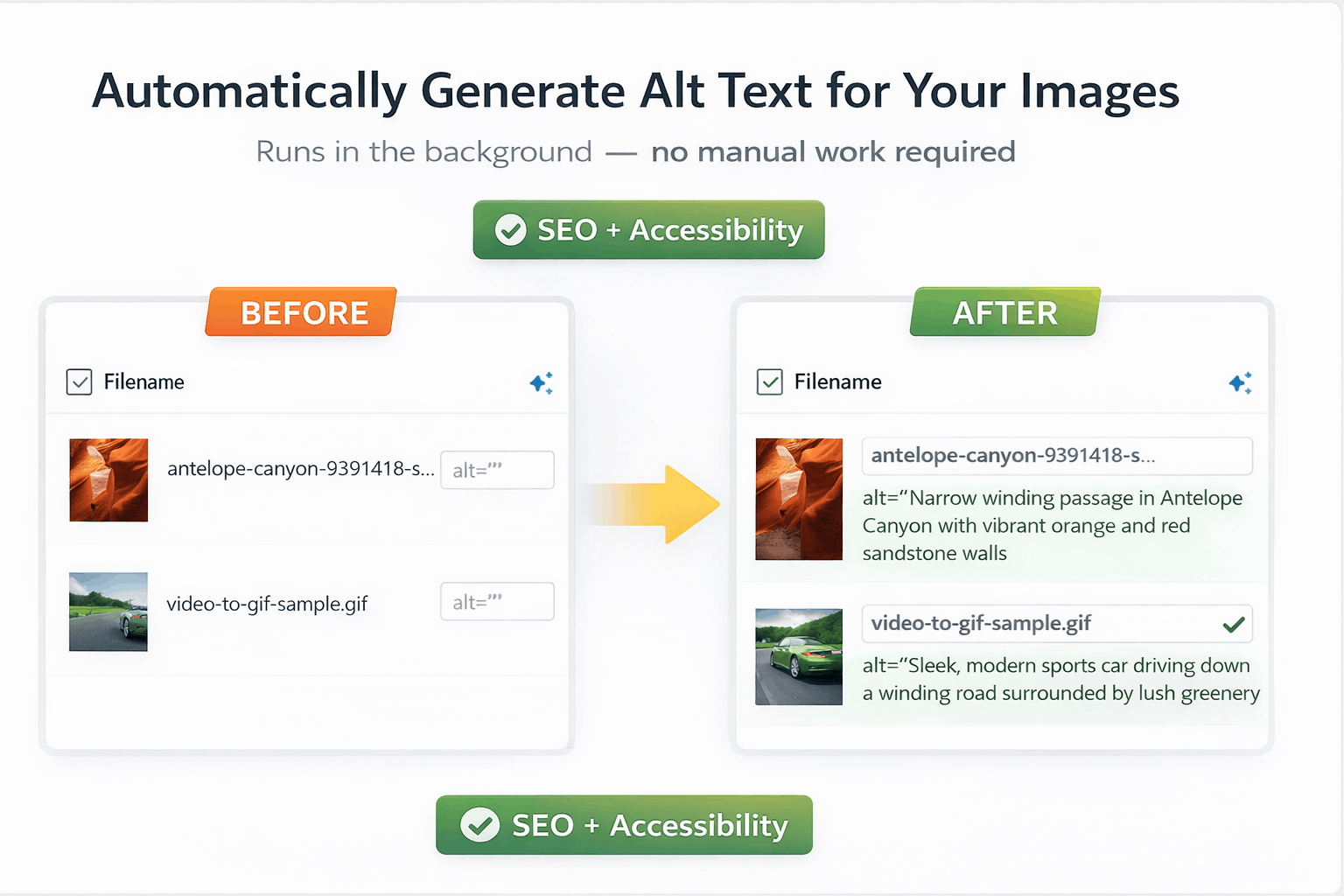
Instantly updates and improves image alt text across your entire Media Library 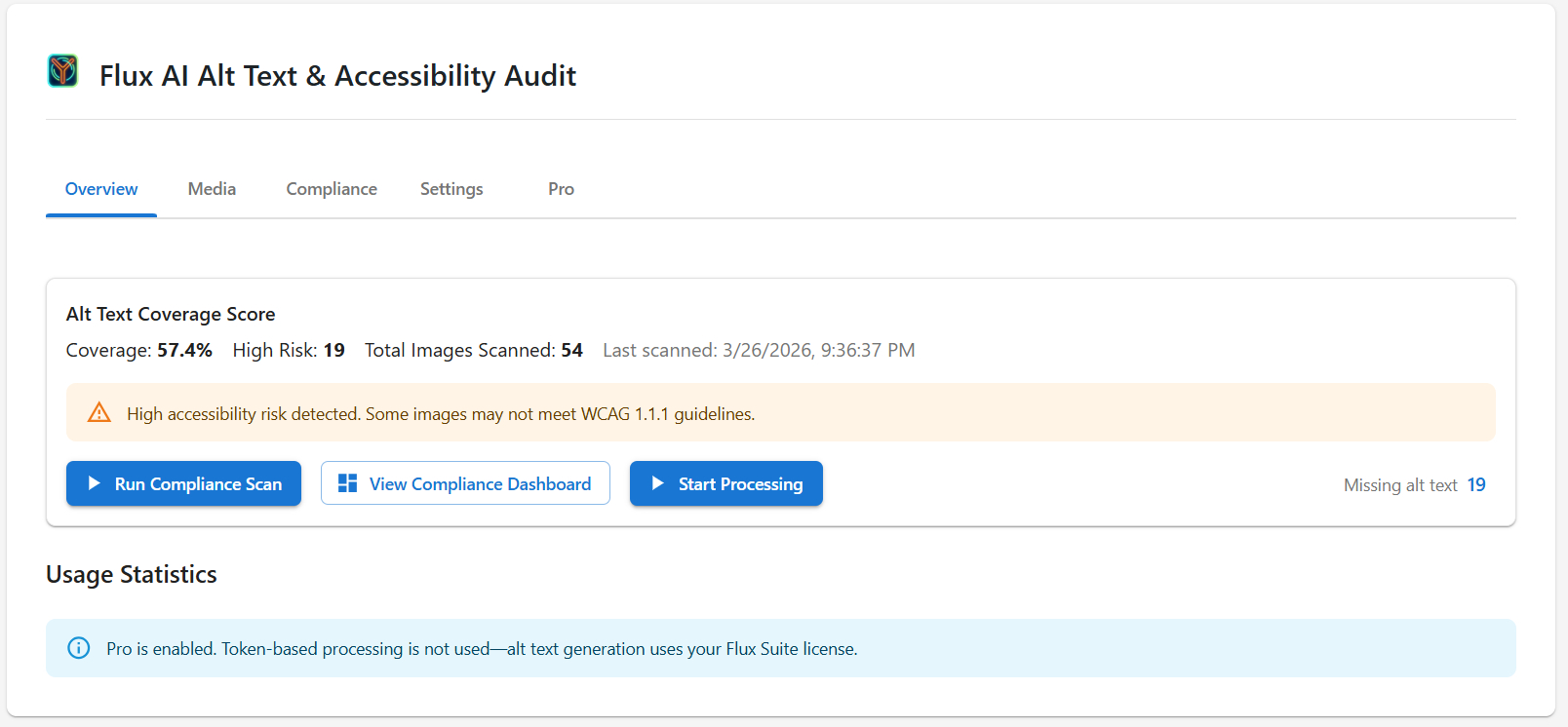
Compliance Dashboard summarizing scan results and coverage risk 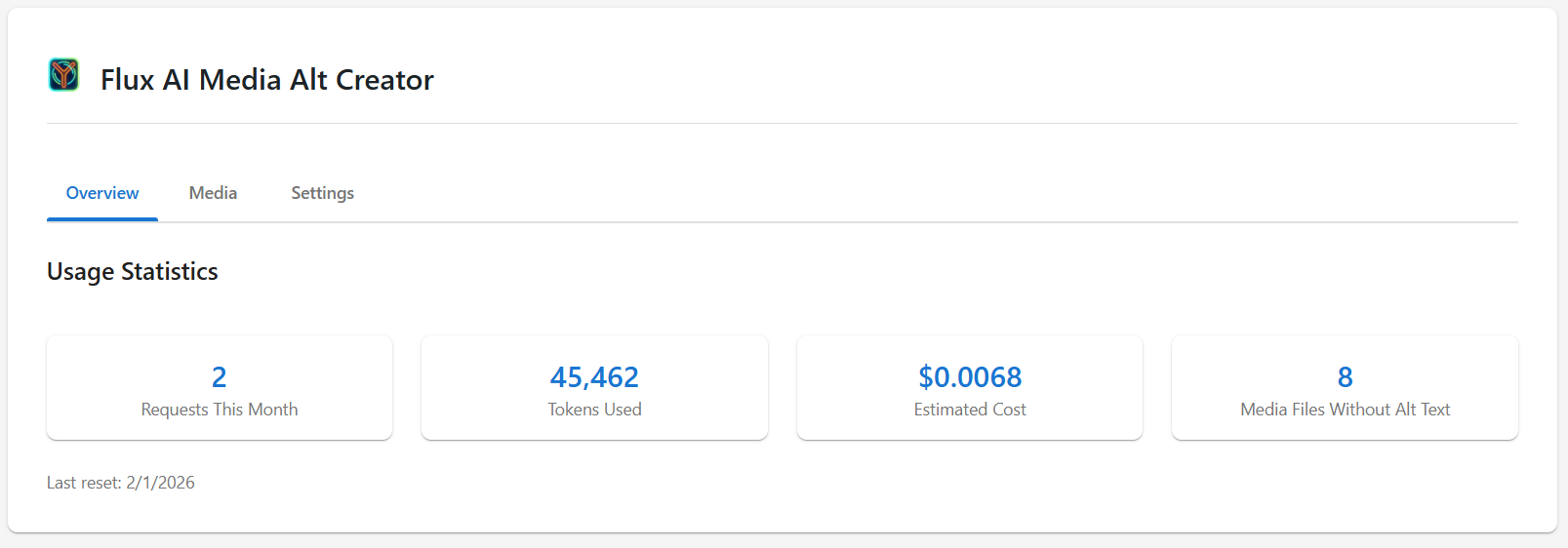
OpenAI usage estimation and provider statistics 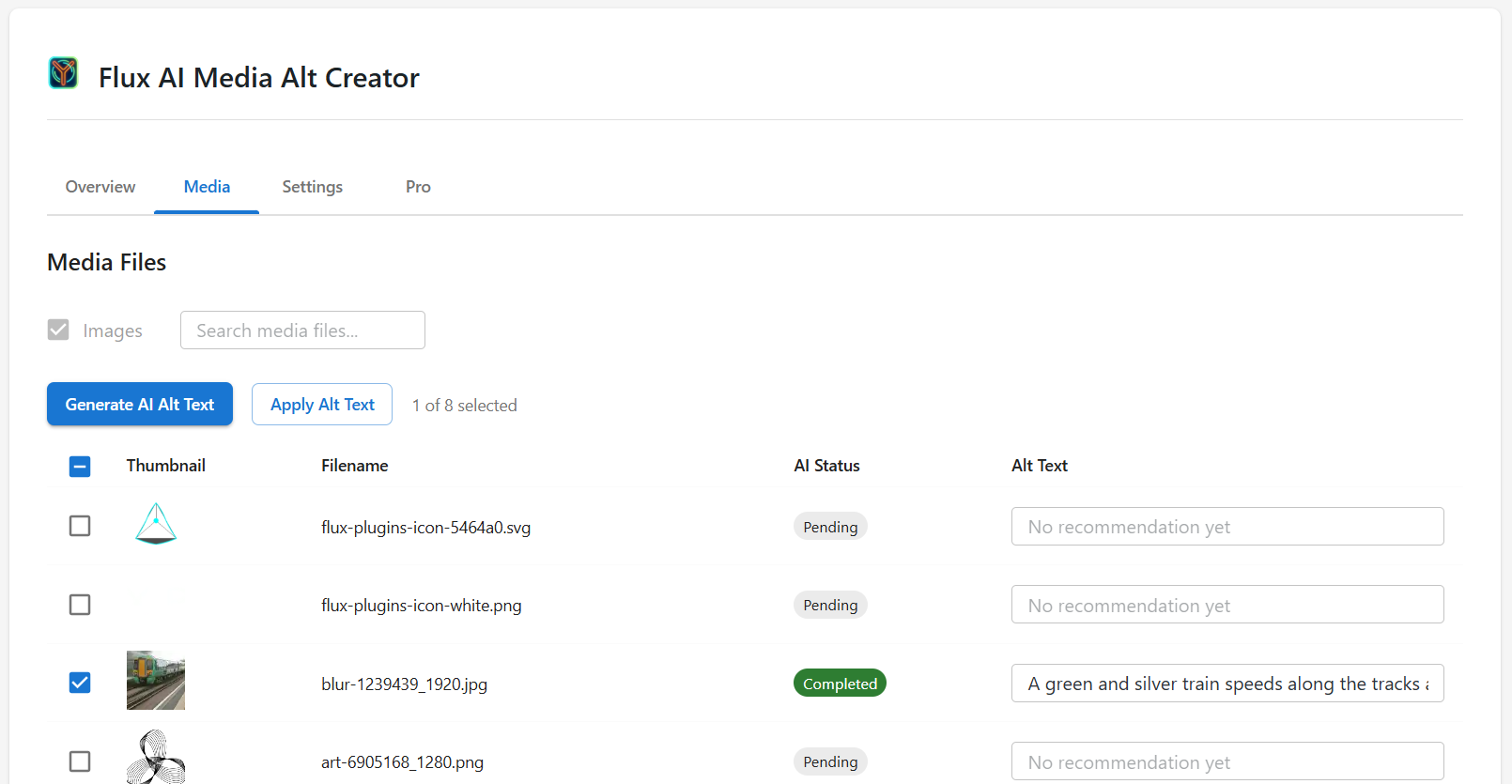
Media management interface for batch editing and applying alt text
Installation
- Upload the plugin files to the
/wp-content/plugins/flux-ai-media-alt-creatordirectory, or install the plugin through the WordPress plugins screen directly. - Activate the plugin through the ‘Plugins’ screen in WordPress.
- Navigate to Flux Suite > AI Media Alt Creator in your WordPress admin.
- In Settings, choose your AI provider (OpenAI, Google Gemini, or Anthropic Claude) and enter the corresponding API key. Get keys: OpenAI, Gemini, Claude.
- Scan your media, select images, generate alt text in batches, then edit or apply the results.
Important: When you generate alt text, image data is sent to your chosen provider for processing. Please review that provider’s privacy policy and terms before use.
FAQ
-
What is the Compliance Dashboard?
-
The Compliance Dashboard scans your media library and categorizes alt text into missing, placeholder, duplicate, descriptive, or contextual groups. It helps you identify and fix accessibility and SEO risks quickly.
-
Does this plugin guarantee WCAG compliance?
-
No plugin can guarantee full WCAG compliance. This plugin helps improve alt text coverage and aligns with WCAG 2.1 guidance for non-text content.
-
Can I bulk fix alt text?
-
Yes. You can filter by risk category and generate alt text in bulk directly from the plugin’s Media tab.
-
Does it support WooCommerce products?
-
Yes. Product images are detected automatically and alt text can include product name and attributes.
-
Which AI models are used?
-
The plugin uses one vision model per provider: OpenAI (gpt-4o-mini), Google Gemini (gemini-2.5-flash-lite), or Anthropic Claude (claude-haiku-4-5). You choose the provider in Settings. Cost estimates in the Overview tab are calculated for the active model.
-
Do I need an API key?
-
For BYOK generation, you need an API key for the provider you select in Settings: OpenAI (get key), Google Gemini (get key), or Anthropic Claude (get key). The plugin uses that provider’s vision API to analyze images and generate alt text.
With a valid Flux Suite license, optional hosted generation can run without configuring those keys. BYOK is not required for full plugin functionality when you use hosted generation. Automation toggles and compliance scans are always available in Settings > Automation; scheduled alt generation needs a BYOK key or Flux Suite hosted generation.
-
How does the vision API integration work?
-
Choose a provider in Settings (OpenAI, Google Gemini, or Anthropic Claude). The plugin sends image data to that provider’s vision API for analysis and generates alt text recommendations you can edit or apply. Image data is transmitted only when you request generation. Review each provider’s privacy policy and terms before use.
-
Will my images be sent to a third party?
-
Yes, when you use BYOK generation: image data is sent to the provider you selected (OpenAI, Google Gemini, or Anthropic Claude) for analysis. Data is only sent when you explicitly request generation unless you enable scheduled alt generation or upload-time auto-generation in Settings, in which case processing follows your Automation settings and uses BYOK or Flux Suite hosted generation when configured. Daily compliance scans run locally and do not send images to external vision APIs. Review each provider’s or Flux Suite terms and privacy policy before use.
-
How much does it cost?
-
Cost depends on the provider and model you choose. The Overview tab shows usage and estimated cost for the active provider’s model. You are charged by the provider based on their pricing. A tooltip on the Usage Statistics section shows which provider and model are used.
Important: The plugin’s usage tracking and cost estimation are for your information only. They do not limit or restrict any features.
-
How does automation work?
-
Enable Settings > Automation to queue media missing alt text on a schedule and optionally run a daily compliance scan. Processing uses Action Scheduler in the background. Compliance scans run on your site without a license. Scheduled alt generation uses a configured BYOK provider API key or Flux Suite hosted generation (valid license). Hosted generation without BYOK keys is optional serviceware through Flux Suite. Manual generation works anytime you configure BYOK or use hosted generation.
-
I previously used the separate Pro plugin. Do I still need it?
-
No. Version 4.0.0 merged the former separate plugin into this one. Deactivate and delete Flux AI Alt Text & Accessibility Audit Pro after updating. Use Settings > Automation here (not a separate plugin tab). If you use Flux Suite hosted generation, keep your license active under Flux Suite > License; BYOK users do not need a license. If both plugins were active, deactivate the old Pro plugin first to prevent duplicate automation hooks.
-
Does this work with existing images?
-
Yes! Scan your entire media library to find images without alt text. Select one or many images, process them in batches (default 10 items per batch via Action Scheduler), then review, edit if needed, and apply the recommendations.
-
What image formats are supported?
-
The plugin supports all standard WordPress image formats, including JPEG, PNG, GIF, WebP, AVIF, SVG, BMP, TIFF, and ICO. Supported vision APIs can analyze the image formats they accept (typically JPEG, PNG, GIF, WebP).

Contributors & Developers
“Flux AI Alt Text & Accessibility Audit by Flux Plugins” is open source software. The following people have contributed to this plugin.
Contributors
Translate “Flux AI Alt Text & Accessibility Audit by Flux Plugins” into your language.
Interested in development?
Browse the code, check out the SVN repository, or subscribe to the development log by RSS.
Changelog
4.0.0
- Merged former Pro plugin: Flux Suite automation, hosted generation, SEO filename helpers, and related REST endpoints are now in this plugin. Configure under Settings > Automation.
- Deactivate and remove the separate Flux AI Alt Text & Accessibility Audit Pro plugin if installed.
- Major version bump; review Upgrade Notice for migration, admin UI, and external HTTP expectations.
- Unified alt text generation and apply for Flux Suite hosted and BYOK backends.
- Added “Use Flux Suite hosted generation” setting when licensed; BYOK provider keys editable when hosted mode is off.
- BYOK vision providers return suggested SEO filenames using the same JSON metadata contract as Flux Suite.
- Setting to control when SEO filenames are generated and applied.
- Refined compliance color indicators (category borders and chips) and consistent admin card styling.
- Coverage score and gauge layouts no longer use nested dashboard cards.
- Clarified readme and admin copy: Flux Suite is optional hosted AI serviceware; local automation and compliance scans are not license-gated.