
Description
Ever updated a PDF and realized half your site links to the old version? Or replaced a hero image and watched your carefully-tuned page layout collapse? Smart Media Replacement solves both problems — and adds a safety net you’ll wish you had earlier.
Replace the file, keep the URL. When you swap an attachment with this plugin, the file’s URL never changes. Every existing link, every email that points to it, every page that embeds it, every SEO ranking — all of it keeps working. No 404s, no broken references, no scrambling to update old content.
Full revision history, one-click restore. Every replacement automatically snapshots the previous version. Made a mistake? Roll back instantly. Want to see what the file looked like three months ago? Download it. Each revision is timestamped, attributed to the user who made it, and can carry an optional note describing what changed.
Works where you work. Replace from the Media Library, or from inside any block’s Replace toolbar in the block editor — image, cover, video, audio, file, gallery, and more. The editor refreshes in place, no page reload, no lost work.
Safe by default. The plugin validates filenames, file types, and image dimensions to keep your URLs intact and your layouts unbroken. WordPress’s auto-scaled images are handled transparently. Revisions land in a database table that’s self-healing on every admin load, and the plugin’s settings page gives you control over how many revisions to keep, how long to retain them, and which file types are tracked.
Use cases
- Monthly reports and newsletters — Update PDFs linked from past emails without breaking any of those links.
- Brand refreshes — Replace logos, headers, and brand imagery once; everywhere they’re used updates automatically.
- Legal documents — Keep current versions of terms of service, privacy policy, and contracts live, with older versions preserved as revisions for compliance.
- Image updates — Refresh product photos, blog hero images, and marketing assets without breaking responsive sizes or SEO.
- Typo fixes in published assets — Fix errors in infographics, downloadable guides, or e-books without scrambling to update references across your site.
- Versioned downloads — White papers, e-books, technical docs that need to stay at a stable URL while preserving older versions on demand.
Features
Replacement and URL preservation
- Replace any media file while keeping its URL, ID, and metadata intact
- Existing internal and external links keep working — no 404s, no SEO impact
- Automatic regeneration of image size variants (thumbnails, medium, large, etc.)
- Transparent handling of WordPress’s
-scaledlarge images
Revision history
- Every replacement automatically snapshots the previous file
- Major/minor version numbering (e.g. v1.0 v1.1 v2.0)
- Optional replacement note per revision, attributed to the user
- One-click restore of any past version
- Download individual revisions, or download a ZIP archive of an attachment’s full history
- Configurable: maximum revisions per file, age-based retention with daily cleanup, per-file-type opt-in
Block editor integration
- “Update existing file” in every block’s Replace toolbar dropdown (image, cover, video, audio, file, gallery, media-text, post-featured-image)
- In-place editor refresh after replacement — no page reload, no lost work
- Accessibility-friendly notifications via WordPress’s native screen reader announcements
Validation safeguards
- Filename matching to keep URLs stable
- Image dimension matching to prevent layout breakage
- MIME-type matching to prevent file corruption
- Clear, actionable error messages when something doesn’t match
Built-in admin
- Settings page at Media Replacement Settings
- Storage stats: total revisions, total disk usage, database table status
- Optional deactivation cleanup (files and/or database)
Multisite-ready
- Network-activate only on multisite — one consistent configuration across every site
- Settings live at Network Admin Settings Media Replacement and apply network-wide
- Revisions are stored per-site under each site’s uploads directory; metadata lives in a single shared network table
- Daily retention cleanup runs across every site in the network
- Automatic row and file cleanup when a site is deleted
- Single-site installs work exactly as before — settings and storage stay per-site, no network behavior involved
WP-CLI
wp smr db check— verify the revisions table exists (non-zero exit code if missing, safe for CI pipelines)wp smr db repair— recreate the table if missing; idempotent, safe to run when the table already existswp smr db status— revision counts and storage usage;--networkfor a per-site breakdown on multisitewp smr db cleanup— delete expired revisions immediately, with--dry-runto preview and--networkfor all sites
Other
- Self-healing database table via configurable scheduled check (hourly, daily, weekly, or disabled); use
wp smr db repairfor on-demand recovery - Developer hooks throughout for custom integrations
Privacy
This plugin is fully self-contained and respects your privacy:
- Does not collect or transmit any user data
- Does not use cookies or third-party tracking
- Only processes files locally on your server
- Does not communicate with external services or APIs
Usage
From the Media Library
- Navigate to the WordPress Media Library
- Open the file you want to replace (click on it, or use the row actions in list view)
- Click Replace File
- Choose your new file — if revisions are enabled, you’ll be prompted for an optional note and version type (minor/major)
- The replacement happens immediately, preserving the file’s URL
From the block editor
- Click on any media block (image, cover, video, audio, file, gallery, etc.)
- Open the Replace toolbar dropdown
- Choose Update existing file
- Pick your new file — the editor refreshes in place
Viewing and managing revisions
- In the Media Library list view, the Revisions row action opens the full revision history for that file
- On the attachment edit screen, the View Revisions button opens the same panel
- From either, you can download any past version individually or as a ZIP, and restore any revision with one click
Screenshots
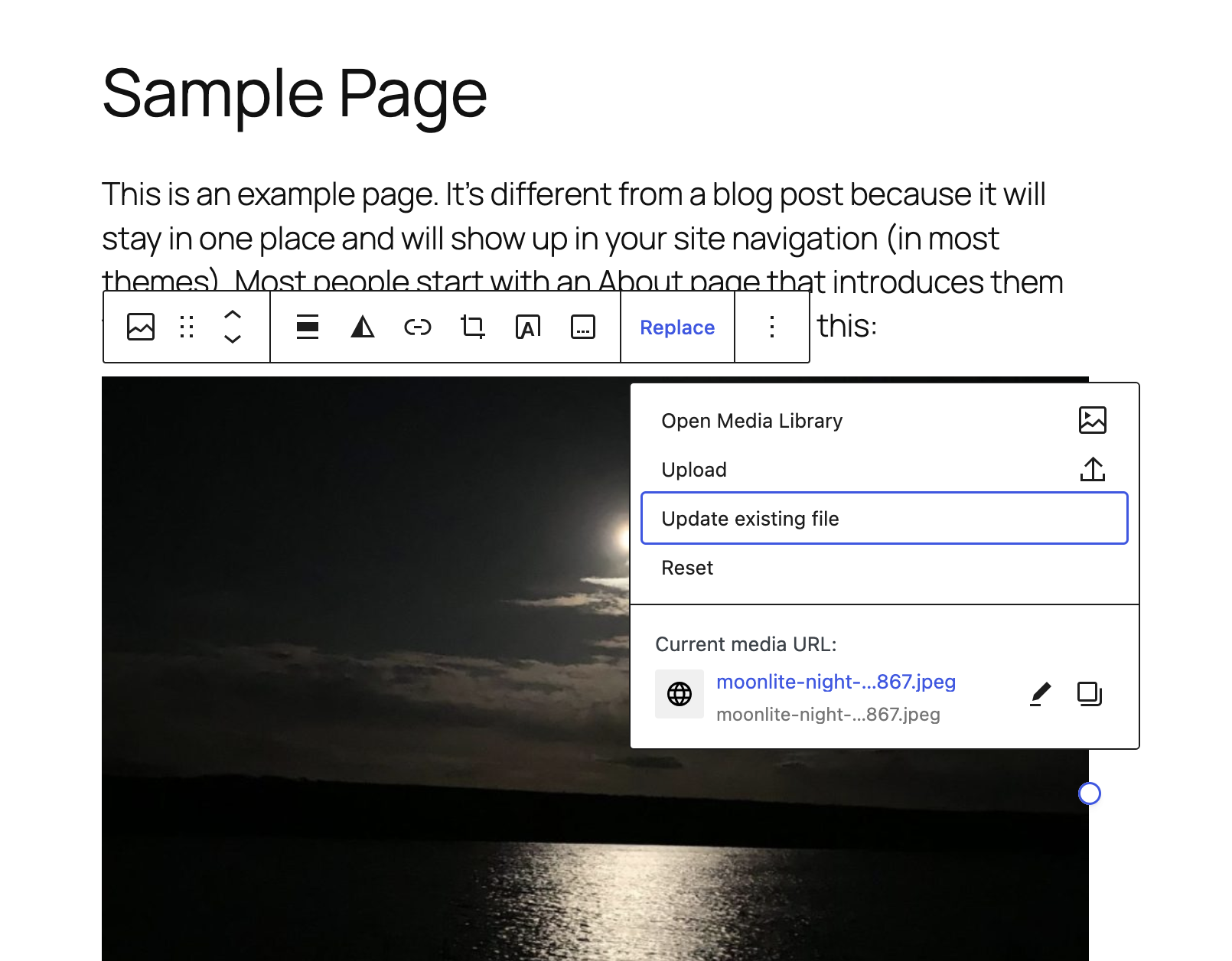
Update an inserted image straight from the block toolbar — no page reload, no lost work. 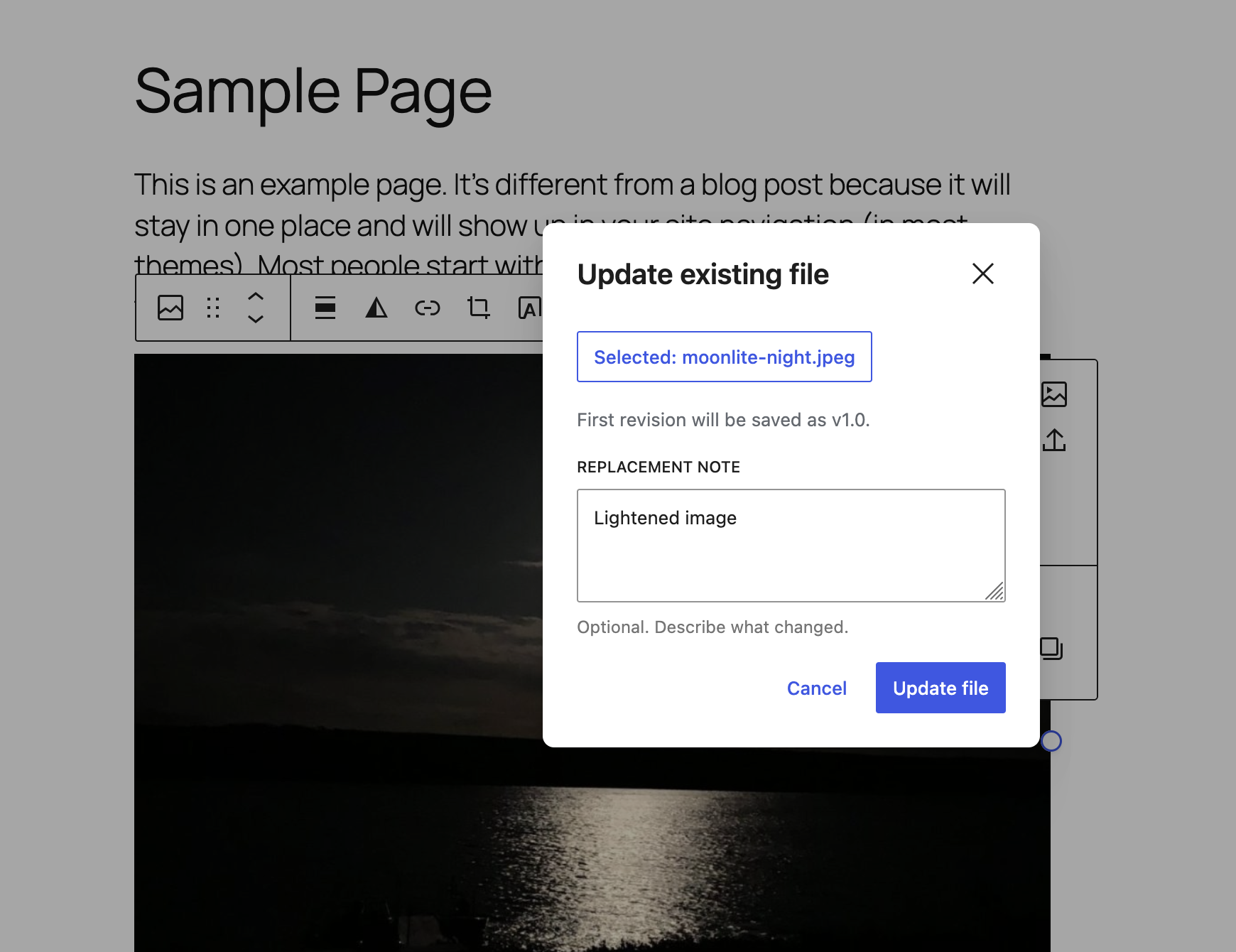
Pick a replacement file and add an optional note describing what changed. 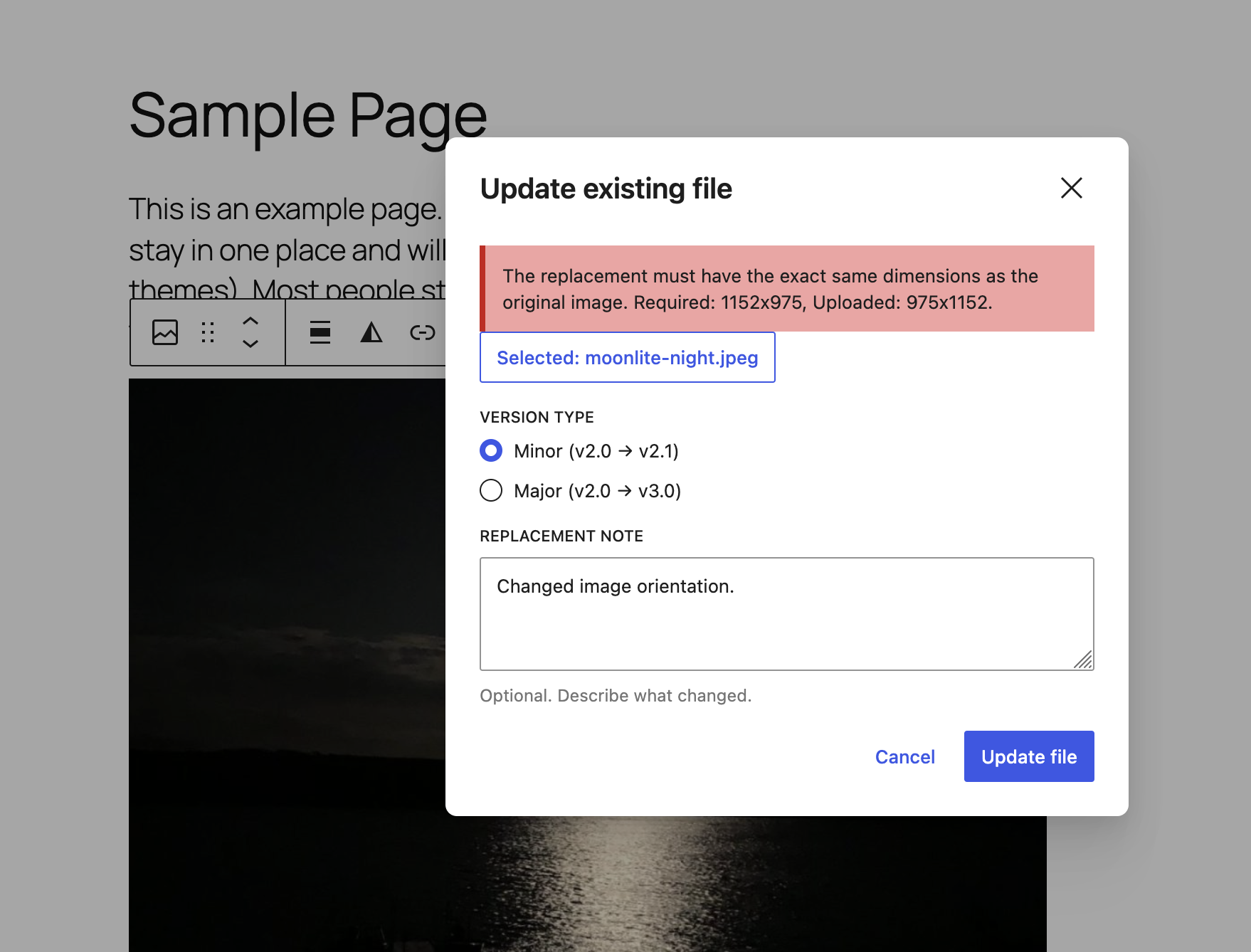
Replacements are validated against the original — file type, filename, and image dimensions — so URLs stay stable and layouts stay intact. 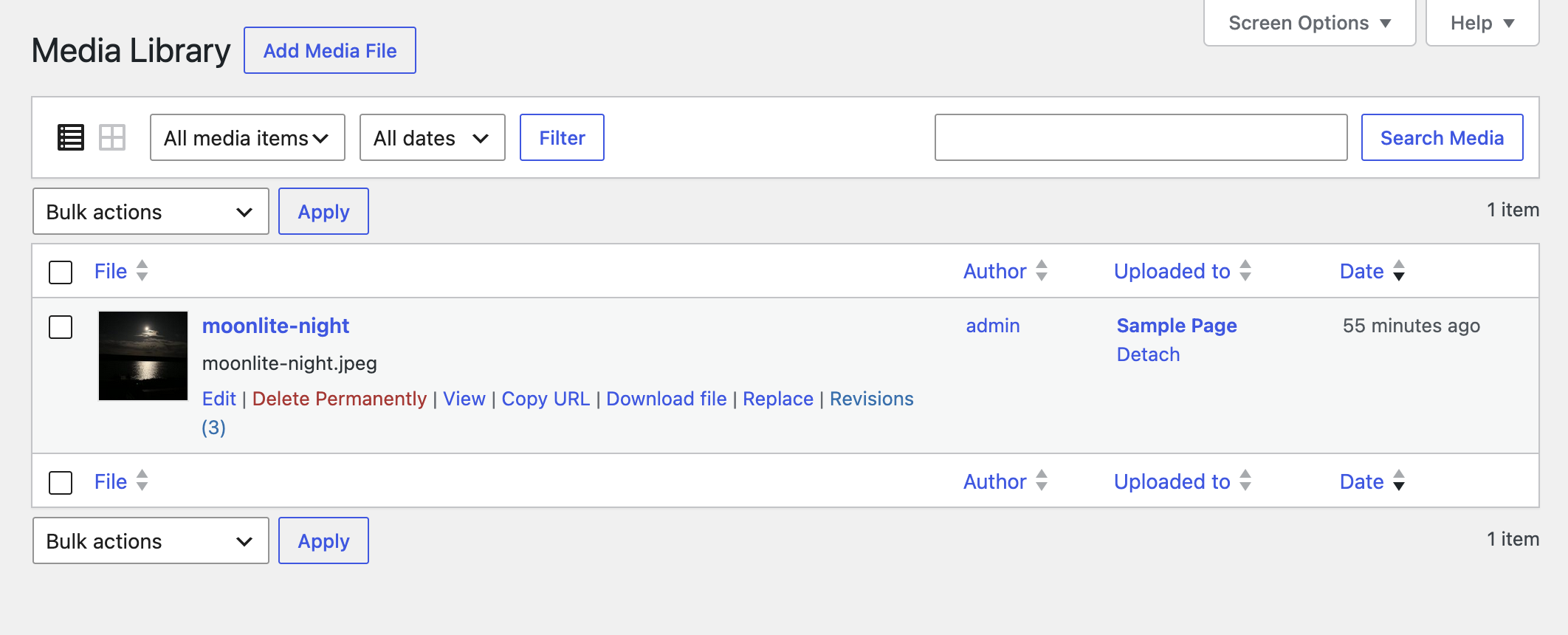
Replace files or view revisions directly from the Media Library row actions. 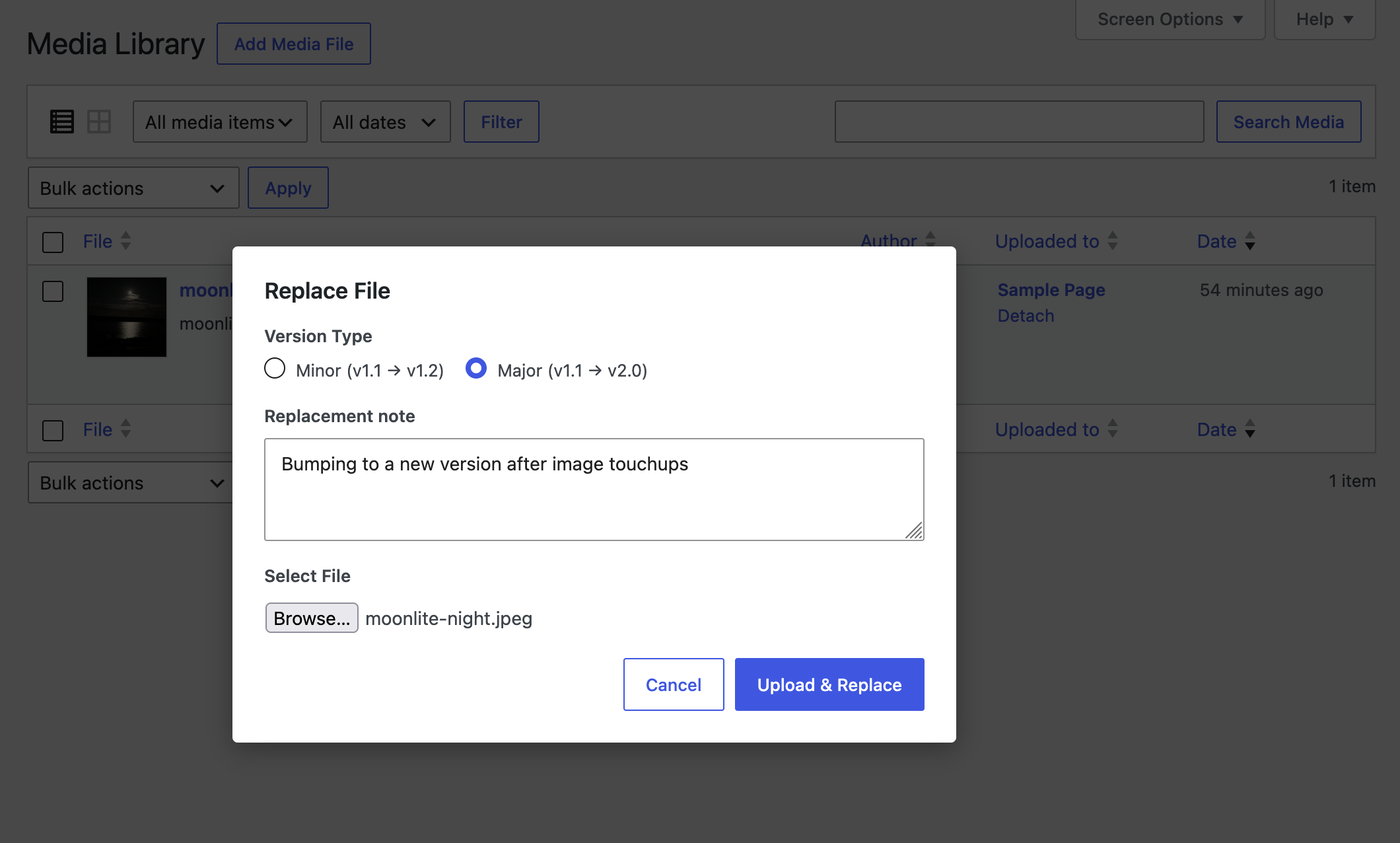
Same replacement flow from the attachment edit screen, with the optional replacement note. 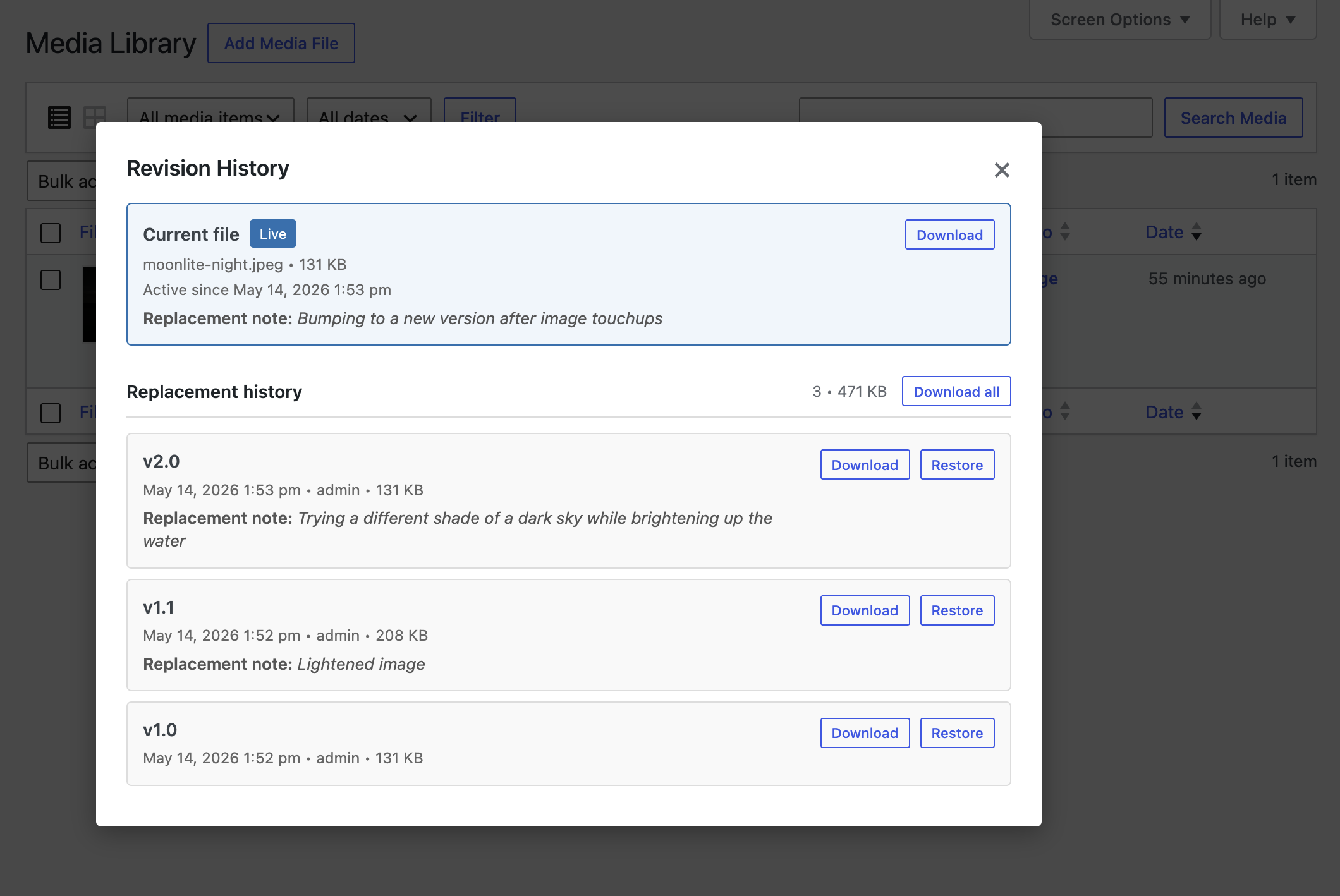
Browse, restore, or download past versions — or grab the full history as a ZIP — all from one panel. 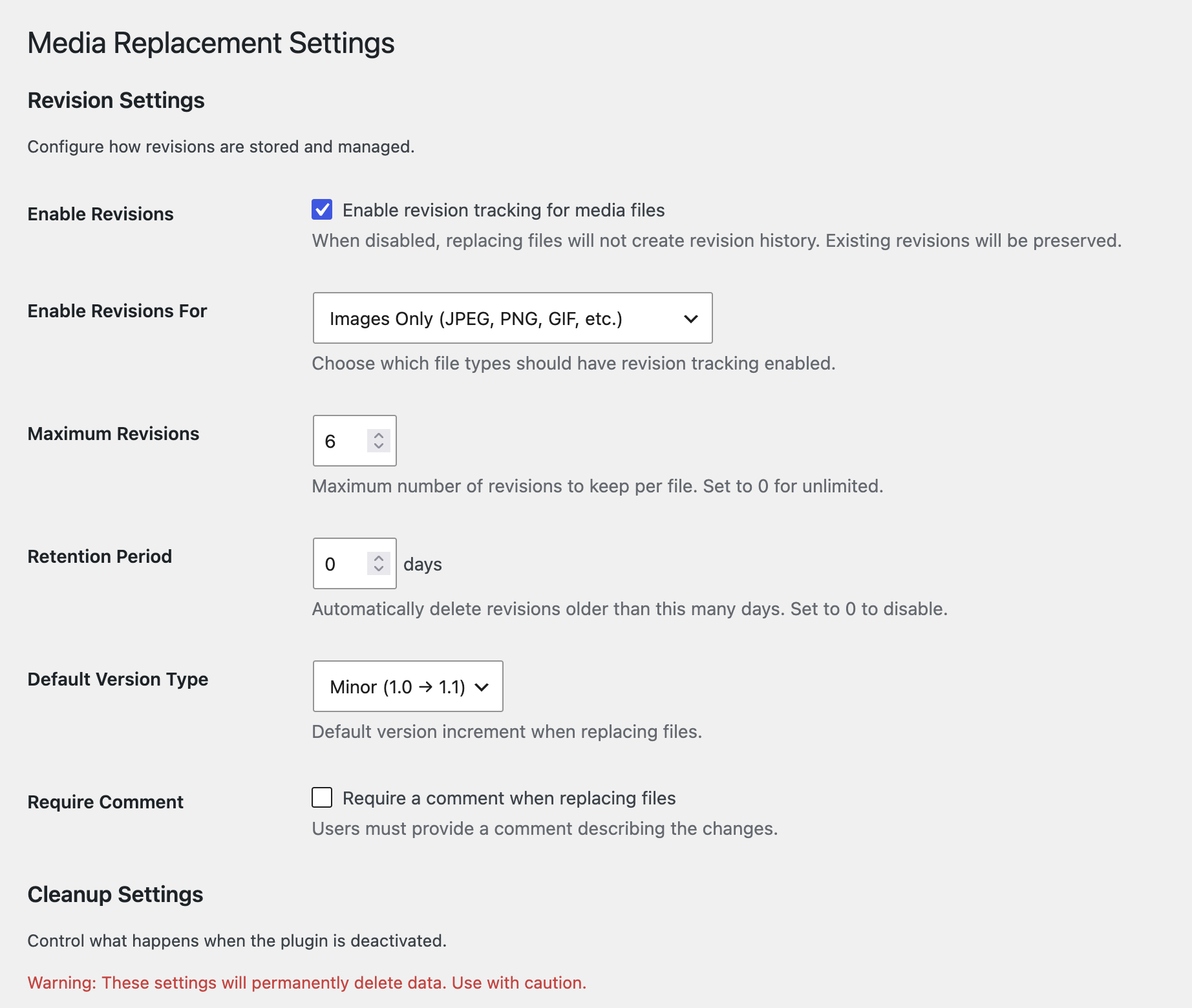
Configure revision retention, file-type tracking, comment requirements, and deactivation cleanup from one settings page.
Installation
- Install from the WordPress plugin directory, or upload the
smart-media-replacementfolder to/wp-content/plugins/ - Activate through the Plugins menu in WordPress
- (Optional) Visit Media Replacement Settings to configure revision history behavior
Multisite
On WordPress multisite the plugin is network-activate only — activate it once from Network Admin Plugins, then configure it at Network Admin Settings Media Replacement. The settings you choose apply to every site on the network. There is no per-site settings page on multisite.
FAQ
-
Will my existing links still work after I replace a file?
-
Yes — that’s the whole point. The replacement keeps the file’s URL and ID unchanged, so every existing link, embed, share, and SEO reference continues to work normally.
-
Can I undo a replacement if something goes wrong?
-
Yes. As long as revisions are enabled for the file type, every replacement preserves the previous version. Open the file’s revision history and click Restore on any past version. The current file is also snapshotted before the restore, so nothing is lost.
-
Does this work in the block editor?
-
Yes. Every block that has a Replace toolbar — image, cover, video, audio, file, gallery, media-text, post-featured-image — gets an Update existing file option in the Replace dropdown. The editor refreshes in place after replacement, so you don’t lose unsaved work.
-
What happens to image thumbnail variants after replacement?
-
WordPress regenerates all configured image sizes (thumbnail, medium, large, etc.) automatically. Their URLs stay stable too, so responsive images and srcset attributes continue working.
-
Can I download a previous version of a file?
-
Yes. Each revision has its own Download button. You can also download a ZIP archive containing every revision for a file at once.
-
Why must my replacement file have the same name as the original?
-
That’s how WordPress serves files — the URL contains the filename. Matching the original filename is what keeps your existing links intact. The plugin shows you the exact filename to use if there’s a mismatch.
-
Why must image dimensions match?
-
Different dimensions can break responsive layouts, hero image sizing, and carefully-tuned cropping across your site. Enforcing identical dimensions protects against unexpected layout shifts. Developers can disable this per-attachment with the
smart_media_replacement_enforce_dimensionsfilter if needed. -
Can I replace a JPG with a PNG?
-
No. The replacement file must be the same MIME type as the original. Mixing file types can break image processing, browser display, and SEO. If you need to change formats, upload as a new image.
-
What if my image was scaled by WordPress?
-
If WordPress automatically created a
-scaledvariant (typical for uploads over 2560px), upload your replacement with the original filename — without the-scaledsuffix. The plugin handles the scaling and regenerates all variants automatically. If you upload with the wrong filename, the error message will tell you exactly what name to use. -
I have revisions enabled but I don’t see any history. Why?
-
Revisions are created on replacement, not on the original upload — so a brand-new attachment shows no history until you’ve replaced it at least once. Also check Media Replacement Settings: the “Enable Revisions For” option lets you scope revisions to documents only, images only, or all file types. If your attachment’s type isn’t covered, no revisions will be tracked.
-
Is there a WP-CLI interface?
-
Yes. The plugin ships with
wp smr db check,wp smr db repair,wp smr db status, andwp smr db cleanup. These are useful in deployment pipelines, after database restores, and on large multisite networks where you want to run retention cleanup on a real system cron instead of relying on WP-Cron. All commands support--networkand--site-id=<id>on multisite;wp smr db cleanupalso accepts--dry-runand--yes. -
Do I need special permissions?
-
Yes — you need the
edit_postcapability for the specific attachment. This matches WordPress’s standard media editing permission model.
Reviews
There are no reviews for this plugin.
Contributors & Developers
“Smart Media Replacement” is open source software. The following people have contributed to this plugin.
Contributors
Translate “Smart Media Replacement” into your language.
Interested in development?
Browse the code, check out the SVN repository, or subscribe to the development log by RSS.
Changelog
What’s new in 1.2.0
Multisite behavior is now consistent and centrally managed.
- Network-activate only on multisite. WordPress no longer exposes a per-site activation link — a super admin network-activates the plugin once.
- Network-wide settings. All configuration lives at Network Admin Settings Media Replacement and applies to every site on the network. The per-site settings page is no longer registered on multisite.
- Retention cron is network-aware. The daily cleanup iterates every site so retention applies across the entire network, not just the main site.
- Plugin “Settings” shortcut on the Plugins screen points to the correct admin (network or site) in both contexts.
Upgrading on multisite: per-site settings stored under v1.1.x are not carried forward to the network store. After upgrading, a super admin should visit Network Admin Settings Media Replacement once and confirm the values. Single-site installs are unaffected.
What’s new in 1.1.1
A major feature release. Revision history, block editor integration, and a handful of reliability improvements for managed hosts.
New features
- Revision history. Every replacement now snapshots the previous file, tracked with major/minor versioning and an optional note. Restore any past version with one click.
- Block editor integration. “Update existing file” now appears in every block’s Replace toolbar — image, cover, video, audio, file, gallery, and more. The editor refreshes in place, no page reload, no lost work.
- Download past versions. Save any individual revision, or grab a ZIP archive of an attachment’s full history.
- Settings page. Control which file types get revisions, how many to keep, how long to retain them, the default version-bump behavior, and whether replacement notes are required.
- Multisite support. Per-site revision storage and settings, automatic cleanup on site deletion, defaults seeded for new sites.
Reliability improvements
- Replacements now work on managed hosts where strict file ownership previously caused 500 errors during the upload step.
- Files are no longer at risk during a failed replacement — the new file is placed before the old one is cleaned up.
- Smoother restore: no more duplicate confirmations or accidental double-rollbacks.
- Failed uploads (wrong dimensions, wrong file type) no longer leave behind orphan revisions.
- The revisions database table is now self-healed on every admin load — recovers automatically from DB resets without needing a deactivate/reactivate.
Security hardening
- Path-traversal protection on revision file lookups.
- Directory listing prevention on the revisions storage folder.
- Stricter input validation on version-type parameters.
1.0.0
- Initial release
- Replace media files while maintaining URLs
- Filename validation to prevent URL changes
- Image dimension enforcement to prevent layout issues
- WordPress scaled image handling
- File type validation for consistency
- AJAX-based replacement with error handling
- Developer hooks for customization